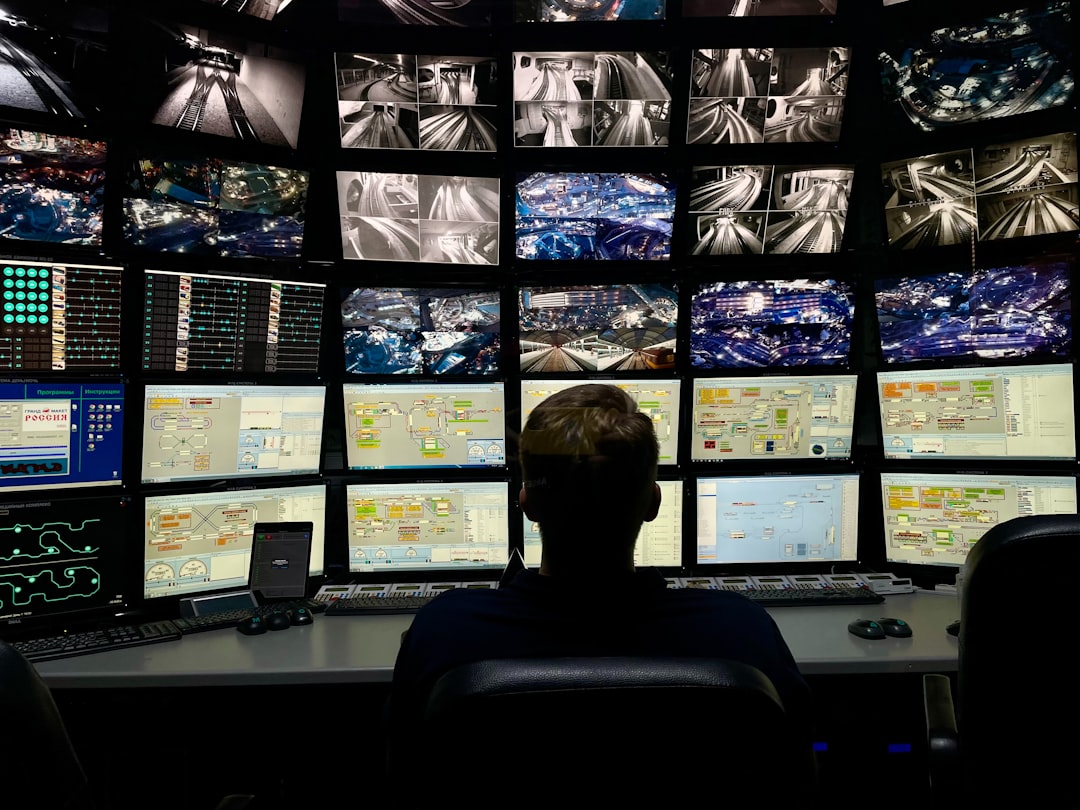

Imagine having maximum control over your digital workspace — seamless multitasking, immersive visuals, and unrivaled productivity. Welcome to the world of the four monitor setup, where your desktop transforms into a powerful battlestation. Whether you’re a software developer, financial analyst, creative professional, or an avid gamer, a quad-display configuration could be your next major upgrade.
TL;DR
A four monitor setup significantly enhances productivity by providing more screen real estate for multitasking and specialized workflows. It’s ideal for professionals managing multiple applications, windows, or data inputs simultaneously. The setup requires thoughtful planning regarding hardware compatibility, ergonomics, and workspace layout. A well-configured battlestation can offer a balance of performance, aesthetics, and long-term comfort.
Why Choose a Four Monitor Setup?
While going from one to two monitors is a common and proven productivity booster, expanding to four takes this concept even further. The core benefits include:
- Increased productivity: Reduce window toggling and streamline workflow by having more applications open simultaneously.
- Specialized layout configurations: Allocate each monitor to a specific type of task, such as communication, research, data analysis, or reference material.
- Immersive experience: Whether you’re deep into editing software or live-streaming, the setup provides an all-encompassing view.
For professionals in fields like finance, coding, video production, and cybersecurity, a four screen interface isn’t just a luxury — it’s often a necessity.
Planning Your Four Monitor Battlestation
Before buying extra monitors and cables, you’ll want to assess your workspace, PC capabilities, and ergonomic needs.
1. Desk Space and Monitor Arrangement
Make sure your desk can accommodate four monitors — typically around 27 inches each. Depending on your space and workflow preferences, here are common layout options:
- 2×2 Grid: Two monitors on the top row and two on the bottom — efficient and balanced.
- Triple horizontal with one vertical: Ideal for coding and documentation.
- Center-focused: One main display at eye level, flanked by three peripheral monitors angled inward.
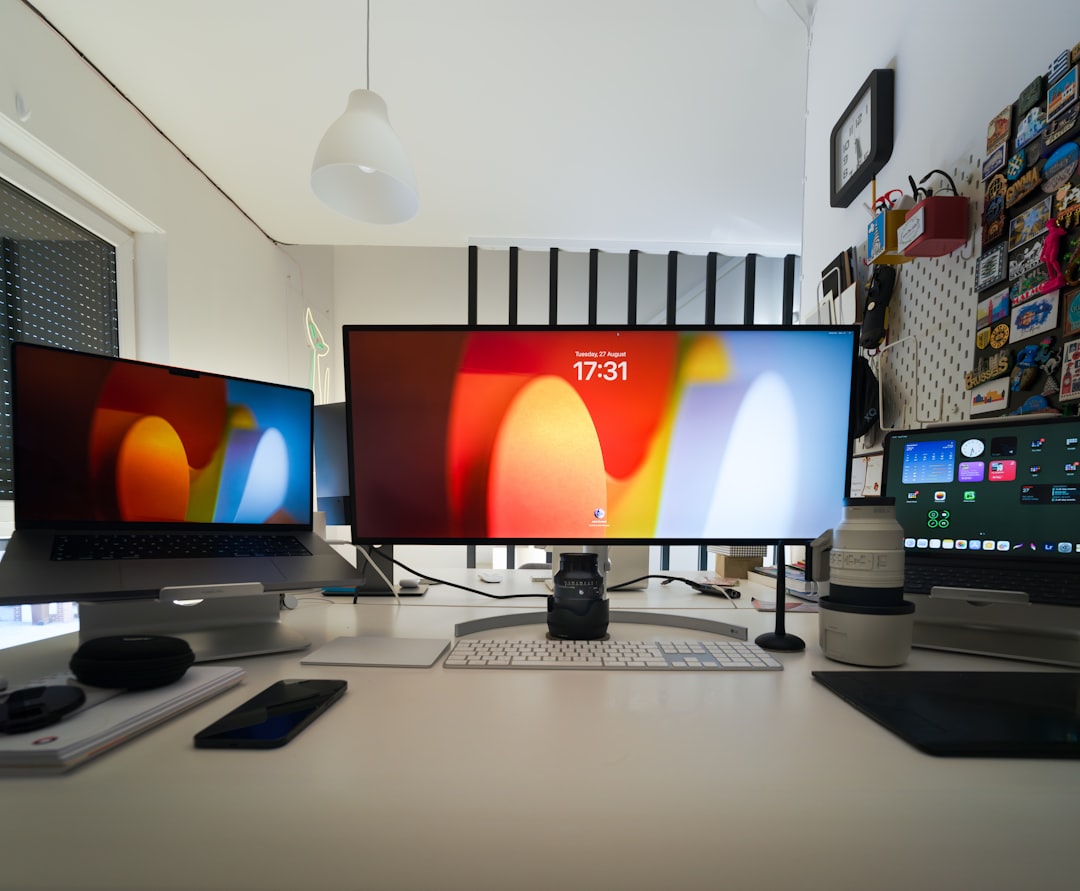
Use monitor stands or VESA-compatible arms to efficiently manage desk space and improve screen positioning. Modular arms offer flexibility in height and angle adjustments.
2. Graphics Card and PC Requirements
Your computer must support multiple monitor outputs. Most modern graphics cards (GPUs) from NVIDIA or AMD can handle two to four displays depending on the model. Things to consider:
- Video output ports: Ensure your GPU has enough HDMI, DisplayPort, or DVI outputs.
- Resolution and refresh rate: Can your PC handle 4K or ultra-high refresh rates across all displays?
- Performance impact: With more displays actively rendering content, you’ll need solid CPU and RAM performance.
It may be necessary to supplement with a second GPU, a docking station, or USB-to-HDMI adapters if ports are limited. Professional setups often integrate workstation-grade hardware designed for multi-display environments.
3. Operating System and Software Compatibility
Modern operating systems like Windows 11 and macOS support multiple displays out of the box, but advanced configuration tools like DisplayFusion or Ultramon offer enhanced monitor management:
- Custom wallpapers per monitor
- Window snapping and hotkeys
- Taskbars on each screen
- Multi-monitor power management
Consider also mapping desktop zones using tools like Microsoft’s PowerToys to further streamline your organizational structure.
Establishing Productive Workflows
It’s not just about having more screens — it’s about using them effectively. Once the four-display configuration is in place, defining screen roles enhances efficiency.
Here’s a typical professional layout:
- Main monitor: Central focus — major tasks or the primary application window.
- Secondary monitor: Email, messaging apps, or client communication platforms.
- Tertiary monitor: Reference materials, dashboards, or documentation.
- Quaternary monitor: Tools, music controls, system monitors, or social feeds.
Such a setup allows uninterrupted attention on your main goal, while peripheral monitors support ancillary tasks without the need to minimize or reshuffle windows continuously.
Optimizing Ergonomics and Cable Management
Monitor setups can introduce physical strain if improperly set up. Follow these guidelines for a healthier and clutter-free battlestation:
- Eye level: Top third of the screen should align with your eyes to reduce neck strain.
- Viewing distance: 20 to 30 inches from your seated position is ideal.
- Equal height and angle: Align the displays to prevent constant neck motion or eye fatigue.
- Cable routing: Use cable sleeves, clips, or under-desk trays to keep power and display cables organized.
Keeping your workspace clean boosts focus and efficiency, not just aesthetics. A properly managed setup can also help with airflow and ventilation around your PC and display hardware.
Ideal Use Cases for a Four Monitor System
This type of setup isn’t for everyone, but shines in scenarios where high information throughput and live multitasking are required:
- Developers and programmers: Code window, documentation, debugging tools, and communication all simultaneously visible.
- Stock traders and financial analysts: Multiple charts, analytics dashboards, news feeds, and trade execution tools.
- Content creators and video editors: Timeline, media browser, effects panel, and rendering queue across separate screens.
- Gamers with streaming setups: Game feed, chat, OBS, and performance monitoring running concurrently.
Also increasingly popular in cybersecurity, IT operations centers, and academic research environments — multi-display systems boost oversight and decision-making speed.
Cost Considerations
Depending on your goals, a four-monitor setup can range from a relatively modest expense to a high-end investment. Here’s a breakdown of typical costs:
- Monitors: $150–$400 each (1080p to 4K)
- Stands or arms: $50–$200
- GPU upgrade: $200–$1000 depending on specs
- Cables and accessories: $50–$100
If you already own two displays, transitioning to a quad setup can be done affordably by adding two matching monitors, especially refurbished models. However, professional-grade needs may justify buying four identical, high-resolution monitors for visual consistency.
Final Thoughts: Is It Worth It?
A four-monitor workstation can redefine how you interact with your digital workspace. Its potential to streamline work, improve concentration, and reduce app-switching friction makes it an invaluable tool for high-performance environments. But it requires deliberate planning — from hardware to ergonomics — to avoid diminishing returns.
Investing in the right technology and taking the time to configure it properly ensures that your productivity battlestation not only looks impressive but also delivers real efficiency gains. For the right user, four monitors may be the ultimate upgrade in computing power and workflow control.

Comments are closed.