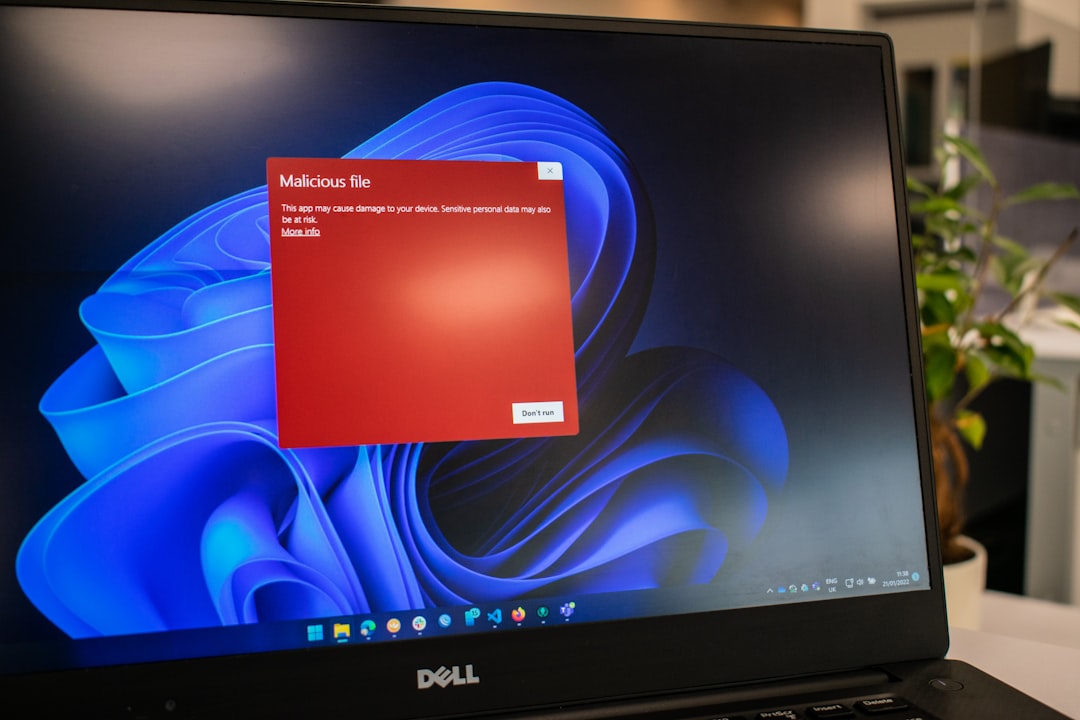

An 8GB RAM laptop is still a capable machine for everyday tasks such as browsing, office work, streaming, and light creative projects. However, over time, even a reasonably powerful laptop can start to feel sluggish. Applications take longer to open, switching between programs becomes frustrating, and startup times increase. Fortunately, there are several simple and practical steps that can significantly improve performance without immediately upgrading hardware.
TL;DR: An 8GB RAM laptop can run smoothly with proper optimization. Disabling startup programs, removing unnecessary software, managing background processes, adjusting visual effects, and upgrading to an SSD can dramatically enhance speed. Regular maintenance like disk cleanup and malware scans also helps maintain consistent performance. Small, simple changes often deliver noticeable results.
1. Disable Unnecessary Startup Programs
Many laptops slow down because too many programs launch automatically during startup. These programs consume memory and CPU power before the user even begins working.
To speed up boot time and free up RAM:
- Open Task Manager (Ctrl + Shift + Esc on Windows).
- Navigate to the Startup tab.
- Disable programs that are not essential, such as music apps, chat apps, or update managers.
Only security software and critical system tools should remain enabled. Everything else can be manually opened when needed. This simple step alone often results in noticeably faster startup and better overall responsiveness.
2. Uninstall Programs That Are No Longer Needed
Unused applications take up not only disk space but sometimes background memory resources. Many programs install background services that continue running even when the app is not actively in use.
To remove unneeded software:
- Go to Control Panel or Settings.
- Select Apps or Programs and Features.
- Uninstall software that is rarely or never used.
It is advisable to avoid uninstalling system-related software unless its purpose is clearly understood. Removing unnecessary programs reduces background load and frees valuable storage space, which contributes to smoother operation.
3. Limit Background Processes
With only 8GB of RAM, efficient memory usage is key. When too many applications run at the same time, the system may rely heavily on virtual memory, which slows everything down.
Users should:
- Close browser tabs that are not in use.
- Exit applications fully rather than minimizing them.
- Use lightweight alternatives to heavy programs whenever possible.
For example, using a lightweight text editor instead of a full-featured design suite for simple edits conserves RAM. Likewise, reducing browser extensions can significantly cut memory consumption.
4. Adjust Visual Effects for Better Performance
Modern operating systems include animations, shadows, and transition effects that enhance visual appeal but consume resources. While each individual effect uses a small amount of RAM and GPU power, together they can impact performance on an 8GB laptop.
To optimize visual settings in Windows:
- Search for “Adjust the appearance and performance of Windows.”
- Select Adjust for best performance, or manually disable specific effects.
This adjustment may slightly reduce visual polish, but many users report improved responsiveness, especially when multitasking.
5. Clean Up Disk Space
When a laptop’s storage is nearly full, performance often declines. The operating system needs sufficient free space for temporary files and virtual memory.
To free up space:
- Run the built-in Disk Cleanup tool.
- Delete temporary files.
- Empty the recycle bin.
- Transfer large files (such as videos) to external storage or cloud services.
Maintaining at least 20% free disk space helps ensure optimal performance. If the laptop still uses a traditional hard drive (HDD), upgrading to an SSD can deliver dramatic improvements in loading times and responsiveness.
6. Upgrade to an SSD (If Not Already Installed)
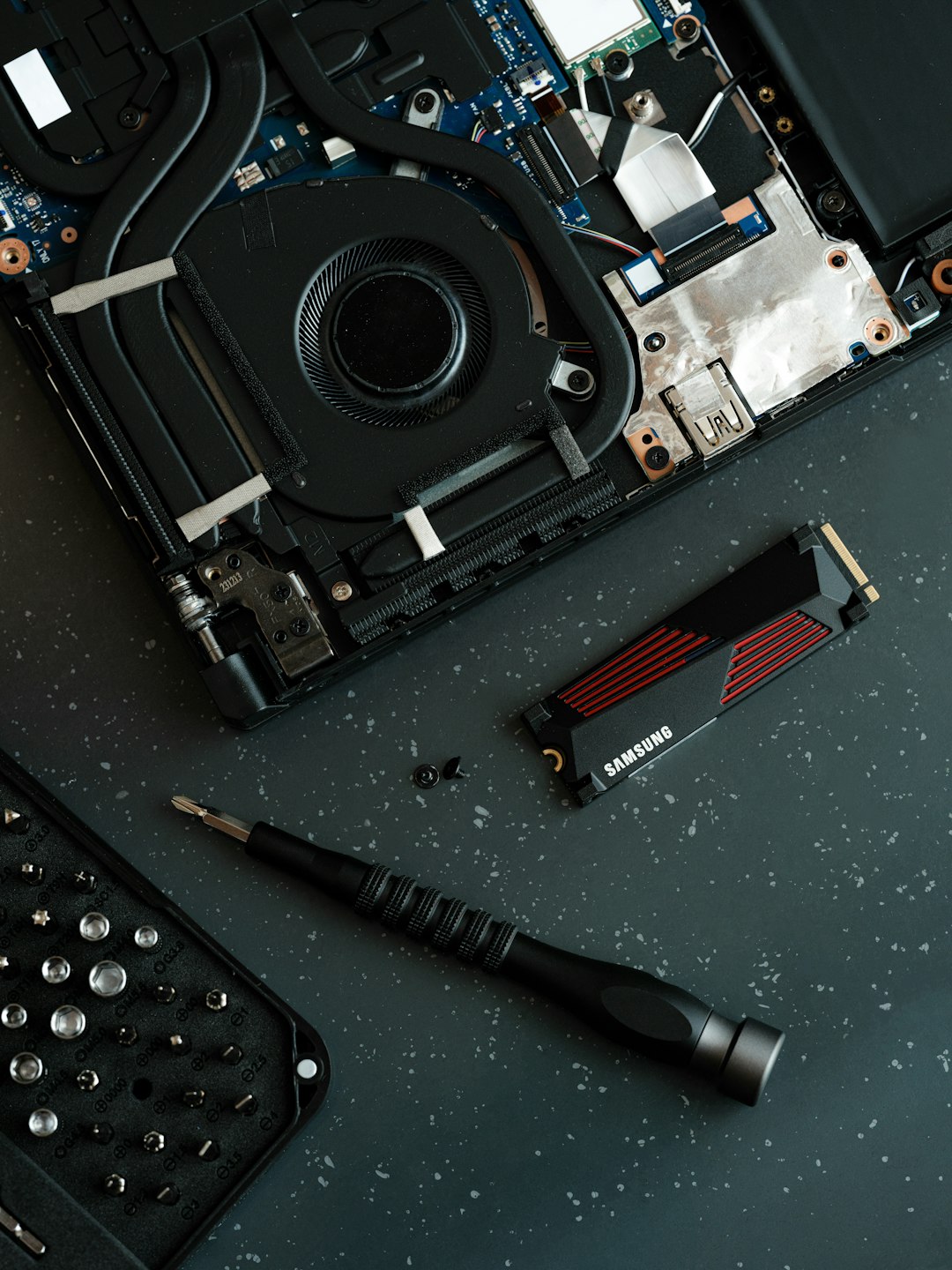
One of the most impactful upgrades for an 8GB RAM laptop is switching from a traditional hard disk drive to a solid-state drive. An SSD dramatically reduces boot times, application loading times, and file access delays.
While this requires a hardware investment, it is often more cost-effective than replacing the entire laptop. Users commonly experience:
- Startup times reduced to under 20 seconds.
- Near-instant application launches.
- Smoother multitasking experience.
Even with the same 8GB of RAM, the system feels significantly faster because storage read and write speeds are much higher.
7. Scan for Malware and Viruses
Malware and unwanted background programs can severely impact performance by consuming CPU and memory resources. Regular scanning ensures that the system remains optimized and secure.
Recommended actions include:
- Running a full system antivirus scan.
- Removing suspicious browser extensions.
- Keeping the operating system updated.
A clean system performs more efficiently and reduces random slowdowns or unexpected behavior.
8. Optimize Browser Usage
Web browsers are often the biggest memory consumers on an 8GB RAM laptop. Modern websites use heavy scripts, media content, and dynamic features that demand significant resources.
To reduce strain:
- Limit the number of open tabs.
- Remove unnecessary browser extensions.
- Enable hardware acceleration if available.
- Use tab-suspension extensions that pause inactive tabs.
Switching to a lighter browser may also help if resource usage is consistently high.
9. Increase Virtual Memory
Virtual memory acts as an extension of RAM by using part of the storage drive as temporary memory. Although it is slower than actual RAM, properly configured virtual memory can reduce crashes and freezing.
Users can manually adjust paging file size in system settings to ensure the system has enough fallback memory when RAM usage peaks. However, this should complement other optimization steps, not replace them.
10. Keep the System Updated
Operating system updates frequently include performance improvements and bug fixes. Outdated drivers or software can cause inefficiencies and compatibility issues.
It is good practice to:
- Install official system updates.
- Update graphics and chipset drivers.
- Keep essential software current.
However, large feature updates should be installed when sufficient storage space is available to avoid temporary slowdowns.
11. Consider a RAM Upgrade (If Possible)
Although 8GB is adequate for many general tasks, certain workloads such as video editing, gaming, or heavy multitasking may benefit from 16GB. Before upgrading, users should check:
- Whether the laptop supports additional RAM.
- The maximum RAM capacity allowed.
- Whether the memory is upgradeable or soldered.
In some cases, a small memory upgrade combined with an SSD can extend the lifespan of a laptop by several years.
12. Restart the Laptop Regularly
Many users leave their laptops running continuously for days or weeks. Over time, background processes accumulate and memory usage increases.
A simple restart:
- Clears temporary memory usage.
- Stops hidden background processes.
- Applies pending updates.
This quick step can instantly improve performance without any technical adjustments.
Conclusion
An 8GB RAM laptop is far from obsolete. With the right maintenance and optimizations, it can deliver reliable performance for everyday computing tasks. Simple changes such as disabling startup programs, cleaning storage, limiting background applications, and managing browser usage can significantly improve speed. For those seeking even greater performance gains, installing an SSD or upgrading RAM may transform the overall experience. Consistency in maintenance is the key to keeping the system fast and responsive.
FAQ
- Is 8GB RAM enough for everyday use in 2026?
Yes, 8GB RAM is generally sufficient for browsing, office work, streaming, and light multitasking. However, heavy gaming or professional creative work may require 16GB or more. - Will upgrading to an SSD make a big difference?
Absolutely. Switching from an HDD to an SSD often provides the most noticeable speed improvement, reducing boot times and making applications load significantly faster. - How many browser tabs are too many for 8GB RAM?
It depends on the websites, but keeping fewer than 10–15 active tabs is a safe range for smooth performance, especially if other applications are running. - Does disabling visual effects really help?
Yes, especially on older or lower-powered laptops. Reducing animations and effects can improve responsiveness during multitasking. - How often should the laptop be restarted?
Restarting at least once every few days helps clear memory and refresh system processes, especially if the device is used daily. - Can malware really slow down a laptop?
Yes. Malware and unwanted background programs consume system resources and can significantly impact performance. Regular scanning is important.

Comments are closed.