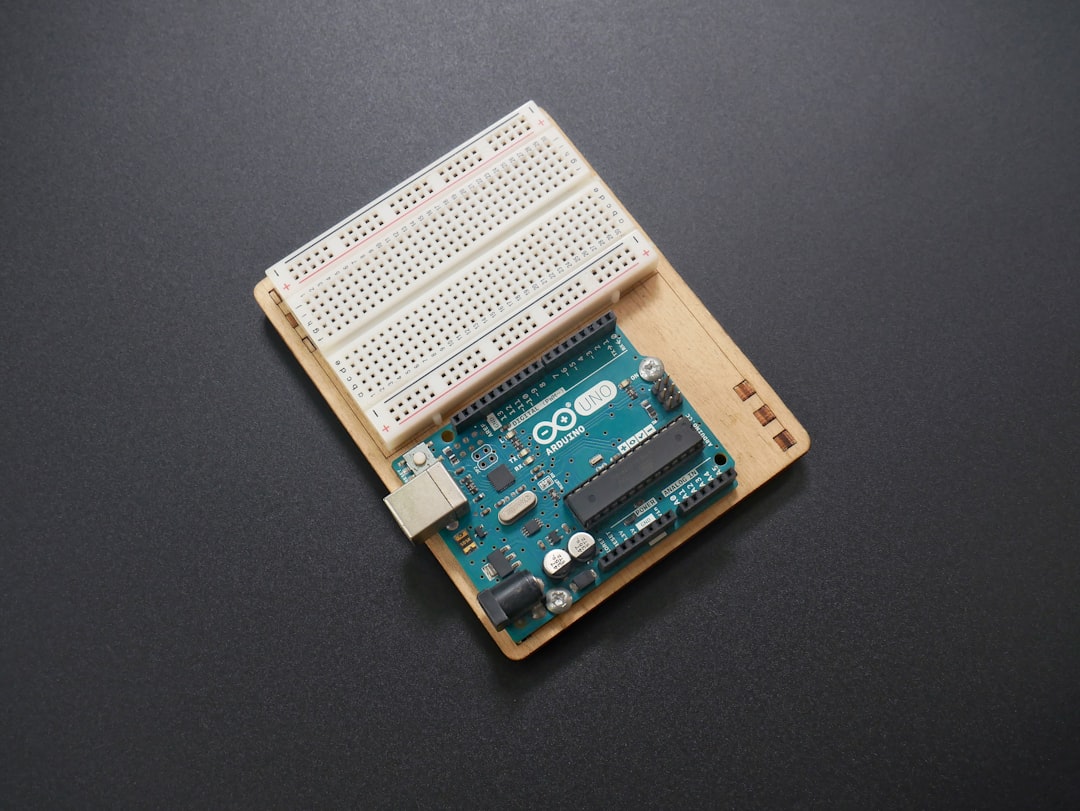

Building a small temperature and humidity monitor is one of the most satisfying Arduino projects because it combines real-world sensing, visual feedback, and a practical result you can use on a desk, in a room, or inside a simple enclosure. By pairing the popular DHT11 temperature and humidity sensor with an SSD1306 OLED display, you can create a compact digital weather station that shows live environmental data without needing a computer or serial monitor.
TLDR: The DHT11 sensor measures temperature and humidity, while the SSD1306 OLED display shows the readings clearly on a small screen. An Arduino reads data from the DHT11 and sends formatted values to the OLED using common libraries. This project is beginner-friendly, affordable, and a great introduction to sensors, displays, and I2C communication. With only a few wires and a short sketch, you can build a useful mini climate monitor.
Why Use a DHT11 with an OLED Display?
The DHT11 is a low-cost digital sensor designed to measure temperature and relative humidity. It is not the most precise sensor available, but it is widely used because it is inexpensive, easy to wire, and supported by many Arduino libraries. For beginners, it provides a simple way to learn how microcontrollers interact with environmental sensors.
The SSD1306 OLED display is another favorite in Arduino projects. Unlike many LCD modules, OLED displays do not need a backlight because each pixel emits its own light. This gives the screen excellent contrast, sharp text, and good visibility even in dim lighting. Most small SSD1306 modules use the I2C interface, meaning they require only two communication wires: SDA and SCL.
Together, these two components turn an Arduino into a standalone digital instrument. Instead of viewing temperature and humidity through the Arduino IDE’s Serial Monitor, the values appear directly on the OLED screen. This makes the project more polished, portable, and useful.
What You Will Need
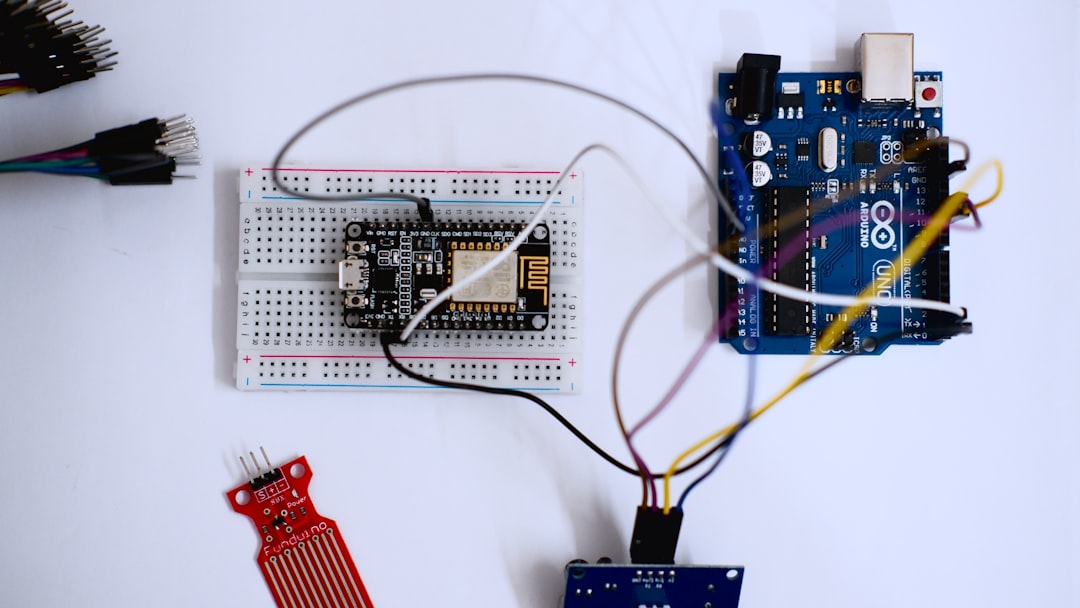
Before building the circuit, gather the following components. Most of them are common in beginner Arduino kits.
- Arduino board such as Arduino Uno, Nano, or Mega
- DHT11 temperature and humidity sensor module
- SSD1306 OLED display, usually 0.96 inch, 128×64 pixels, I2C version
- Breadboard for prototyping
- Jumper wires
- USB cable for programming and power
- Arduino IDE installed on your computer
If you are using a bare DHT11 sensor rather than a module, you may also need a 10k ohm pull-up resistor between the data pin and VCC. However, many DHT11 modules already include this resistor on the small breakout board.
Understanding the Components
The DHT11 has a sensing element for humidity and a thermistor for temperature. Internally, it converts the measurements into digital data, which the Arduino reads using a single data pin. It typically measures temperature from 0°C to 50°C and humidity from 20% to 90% RH. Its accuracy is usually around ±2°C for temperature and ±5% for humidity, making it suitable for basic monitoring rather than scientific measurement.
The SSD1306 OLED display communicates through I2C using two lines. On an Arduino Uno, the I2C pins are:
- SDA: A4
- SCL: A5
On an Arduino Nano, these are also A4 and A5. On an Arduino Mega, SDA is pin 20 and SCL is pin 21. Many OLED modules operate at both 3.3V and 5V, but it is always wise to check the label or datasheet for your particular module.
Wiring the Circuit
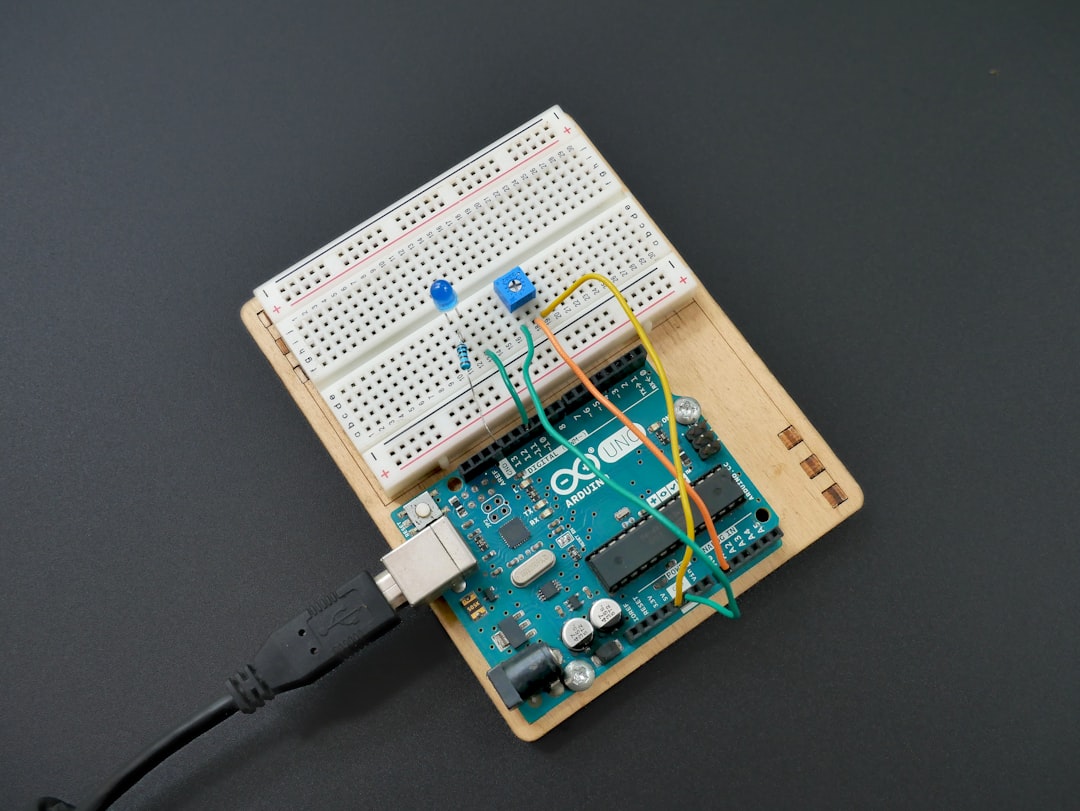
The wiring is simple, especially if both components are modules. Connect the DHT11 to the Arduino first, then connect the OLED display through I2C.
DHT11 Wiring
- DHT11 VCC to Arduino 5V
- DHT11 GND to Arduino GND
- DHT11 DATA to Arduino digital pin 2
SSD1306 OLED Wiring
- OLED VCC to Arduino 5V or 3.3V, depending on your module
- OLED GND to Arduino GND
- OLED SDA to Arduino A4
- OLED SCL to Arduino A5
Make sure all grounds are connected together. A missing ground connection is one of the most common causes of sensor or display problems.
Installing the Required Libraries
To make the project easier, use well-known Arduino libraries. Open the Arduino IDE, go to Sketch > Include Library > Manage Libraries, and install the following:
- DHT sensor library by Adafruit
- Adafruit Unified Sensor
- Adafruit SSD1306
- Adafruit GFX Library
The DHT library handles the timing needed to communicate with the sensor. The SSD1306 and GFX libraries make it easy to draw text, shapes, and values on the OLED screen.
Arduino Code
The following sketch reads temperature and humidity from the DHT11, then displays the values on the SSD1306 OLED. It also shows a simple status message if the sensor reading fails.
#include <Wire.h>
#include <Adafruit_GFX.h>
#include <Adafruit_SSD1306.h>
#include <DHT.h>

#define SCREEN_WIDTH 128
#define SCREEN_HEIGHT 64
#define OLED_RESET -1

#define DHTPIN 2
#define DHTTYPE DHT11

Adafruit_SSD1306 display(SCREEN_WIDTH, SCREEN_HEIGHT, &Wire, OLED_RESET);
DHT dht(DHTPIN, DHTTYPE);

void setup() {
  Serial.begin(9600);
  dht.begin();

  if (!display.begin(SSD1306_SWITCHCAPVCC, 0x3C)) {
    Serial.println("OLED not found");
    while (true);
  }

  display.clearDisplay();
  display.setTextColor(SSD1306_WHITE);
  display.setTextSize(1);
  display.setCursor(0, 0);
  display.println("DHT11 Monitor");
  display.println("Starting...");
  display.display();
  delay(2000);
}

void loop() {
  float humidity = dht.readHumidity();
  float temperature = dht.readTemperature();

  display.clearDisplay();

  if (isnan(humidity) || isnan(temperature)) {
    display.setTextSize(1);
    display.setCursor(0, 0);
    display.println("Sensor error!");
    display.println("Check DHT11 wiring.");
    display.display();
    delay(2000);
    return;
  }

  display.setTextSize(1);
  display.setCursor(0, 0);
  display.println("Room Conditions");

  display.setTextSize(2);
  display.setCursor(0, 18);
  display.print(temperature, 1);
  display.print(" C");

  display.setCursor(0, 44);
  display.print(humidity, 1);
  display.print(" %");

  display.display();

  Serial.print("Temperature: ");
  Serial.print(temperature);
  Serial.print(" C, Humidity: ");
  Serial.print(humidity);
  Serial.println(" %");

  delay(2000);
}
How the Code Works
The sketch begins by including the necessary libraries. The Wire library manages I2C communication, while Adafruit_GFX and Adafruit_SSD1306 control the OLED display. The DHT library communicates with the DHT11 sensor.
The line #define DHTPIN 2 tells the Arduino that the DHT11 data pin is connected to digital pin 2. If you connect the sensor to a different pin, change this value. The line #define DHTTYPE DHT11 tells the library which DHT sensor model is being used.
In setup(), the code starts the sensor and initializes the OLED display. Most SSD1306 displays use the I2C address 0x3C, but some use 0x3D. If your screen stays blank, the address may be the first thing to check.
In loop(), the Arduino reads humidity and temperature. If either reading is invalid, the OLED displays an error message. Otherwise, the values are printed on the screen in a clean layout. The code waits two seconds between readings because the DHT11 is relatively slow and should not be polled too frequently.
Improving the Display Layout
One of the advantages of the SSD1306 OLED is that it can show more than just plain numbers. You can customize the interface to make the project look more professional. For example, you could:
- Add labels such as Temp and Humidity
- Draw horizontal lines to separate sections
- Use larger text for the most important value
- Display a small comfort message such as Dry, Comfortable, or Humid
- Add simple icons for temperature and moisture
Because the display is only 128×64 pixels, good layout matters. Avoid crowding the screen with too much text. A clear display with two large readings is usually better than a cluttered display full of tiny labels.

Troubleshooting Common Problems
If the project does not work immediately, do not worry. Sensor and display projects often require small adjustments. Here are common issues and likely solutions:
- OLED screen is blank: Check VCC, GND, SDA, and SCL connections. Try changing the I2C address from
0x3Cto0x3D. - Sensor error message appears: Confirm that the DHT11 data pin is connected to the same pin defined in the code.
- Readings seem incorrect: Keep the sensor away from heat generated by voltage regulators, USB ports, or your hand.
- Humidity changes slowly: This is normal for the DHT11. It is not designed for rapid response.
- Compilation errors: Make sure all required libraries are installed and updated.
DHT11 Limitations and Alternatives
The DHT11 is excellent for learning, but it has limitations. Its measurement range and accuracy are modest, and it updates slowly. If you need better performance, consider using a DHT22, AM2302, BME280, or SHT31. These sensors offer wider ranges, better precision, and often faster response times.
However, the DHT11 still has a place in hobby electronics. It is cheap, simple, and good enough for basic room monitoring. For classrooms, beginner kits, and quick prototypes, it remains a practical choice.
Project Ideas and Extensions
Once the basic monitor works, you can expand it in many interesting ways. Arduino projects are most rewarding when you gradually add new features and learn from each improvement.
- Add a buzzer to sound an alert when temperature or humidity crosses a limit.
- Use LEDs to indicate comfort levels: green for normal, blue for cool, red for hot.
- Log data to an SD card for long-term monitoring.
- Power it with a battery to make a portable sensor unit.
- Upgrade to WiFi using an ESP8266 or ESP32 to send data to a web dashboard.
You can also place the circuit in a 3D-printed or handmade enclosure. Just remember to leave ventilation holes around the DHT11 so it can measure air conditions accurately. If the sensor is sealed inside a box with the Arduino, it may read a slightly warmer temperature than the actual room.
Practical Tips for Better Readings
For more reliable results, mount the DHT11 away from direct sunlight, heaters, laptop vents, and other heat sources. Avoid touching the sensor while measuring, because body heat and moisture can influence the readings. If you want to compare accuracy, place another thermometer nearby and observe the difference over several minutes.
It is also helpful to average readings if you want a smoother display. For example, you can take several measurements and calculate an average before updating the OLED. This reduces small fluctuations and makes the display look more stable. Since the DHT11 does not update quickly, keep the refresh interval reasonable, usually around two seconds or more.
Conclusion
A DHT11 temperature sensor with an Arduino and SSD1306 OLED display is a compact, affordable, and educational project that demonstrates several important electronics concepts. You learn how to read environmental data, communicate with an I2C display, use Arduino libraries, and present information in a user-friendly way.
Although the DHT11 is not a high-precision sensor, it is perfect for beginners and simple monitoring tasks. The SSD1306 OLED adds a professional touch by making the data visible without a connected computer. With a few extra features, this project can grow from a basic room monitor into a smart alert system, data logger, or wireless weather station.

Comments are closed, but trackbacks and pingbacks are open.