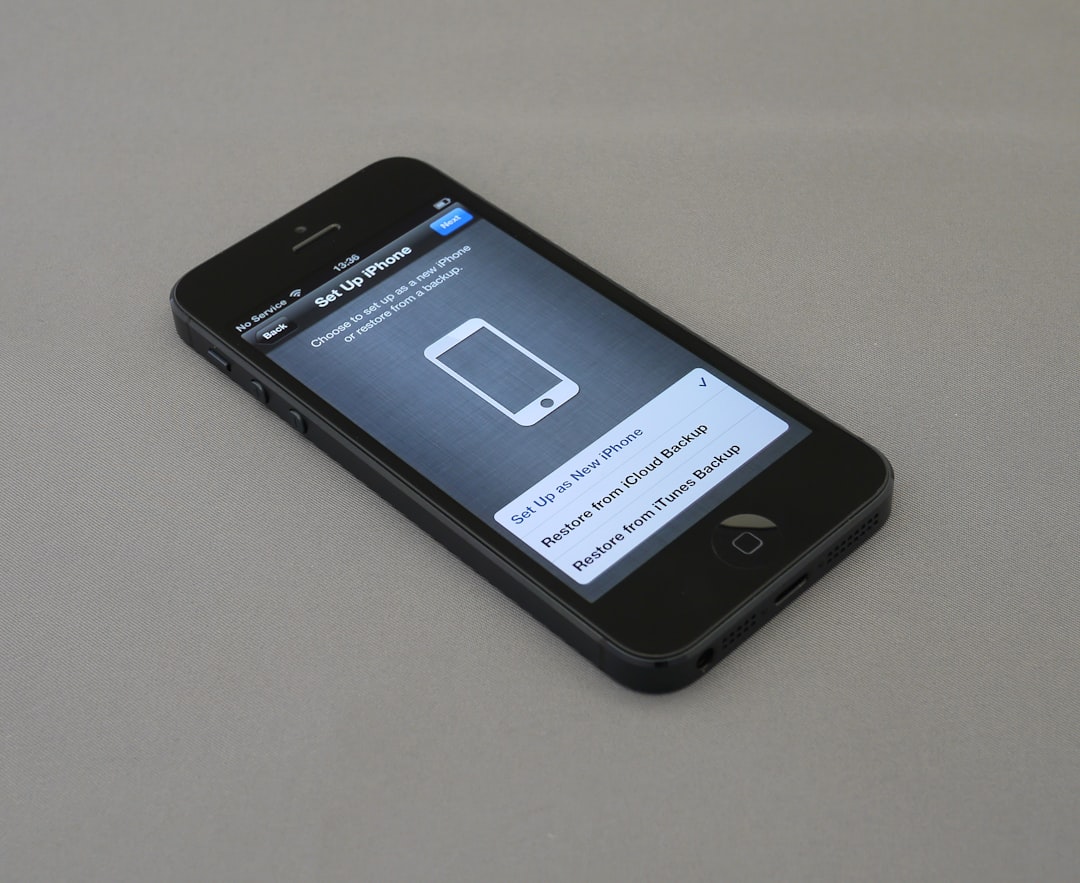

Your iPhone is a small glass-and-metal computer with a powerful processor, bright display, radios, cameras, sensors, and a lithium-ion battery packed into a very tight space. Most of the time it manages heat so quietly that you never notice it. But while charging, playing demanding games, or making long FaceTime calls, that balance can tip, and your iPhone may feel warm or even uncomfortably hot.
TLDR: iPhones overheat when they create heat faster than they can release it, especially during charging, gaming, FaceTime, navigation, or use in hot environments. A warm iPhone is often normal, but repeated overheating, warning screens, sudden shutdowns, or battery swelling are signs to take seriously. To cool it down, unplug it, remove the case, stop demanding apps, move it out of direct sunlight, and let it rest at room temperature.
Why iPhones Get Hot in the First Place
Every iPhone generates heat during normal use. The processor, graphics chip, battery, display, camera system, and wireless antennas all consume power, and some of that power becomes heat. This is basic physics: when electrical components work hard, they warm up.
Unlike a laptop or desktop computer, an iPhone has no fan. It relies on passive cooling, meaning heat spreads through the internal frame, back glass, display, and metal edges before escaping into the air. That is why the outside of the phone may feel warm. In many cases, this is not a malfunction; it is the phone moving heat away from its internal components.
However, problems start when several heat-producing activities happen at the same time. For example, charging while gaming, using FaceTime while connected to cellular data, or navigating with GPS in a hot car can push the device beyond its comfortable thermal range.
Why iPhones Overheat During Charging
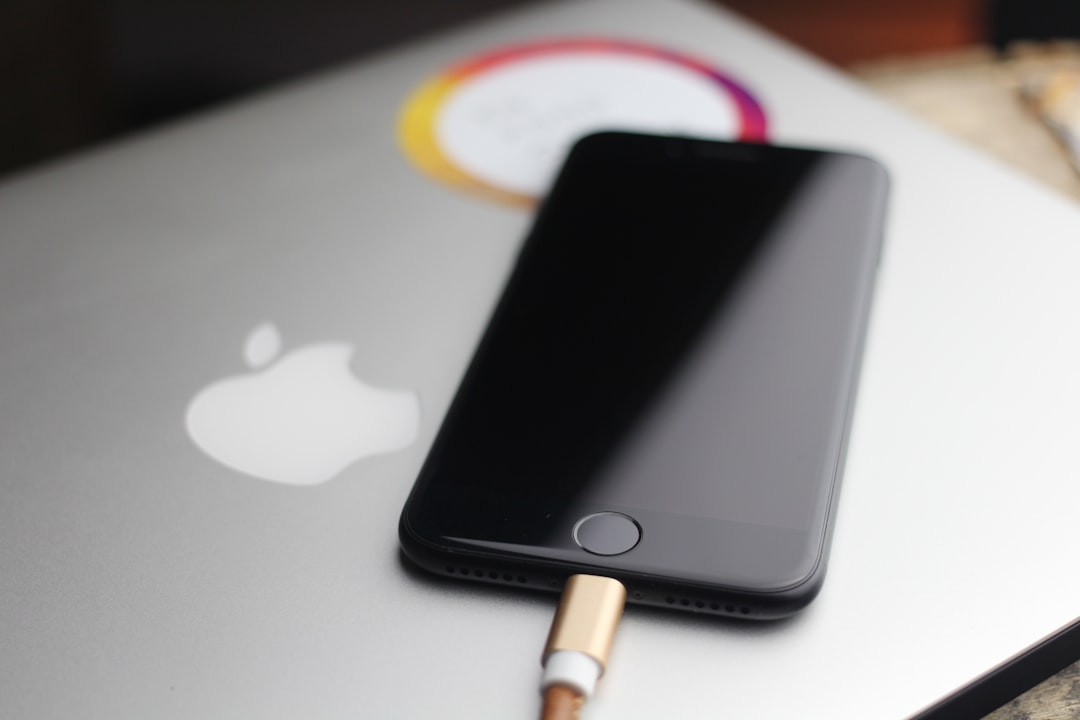
Charging naturally creates heat because energy is being transferred into the battery. Fast charging creates even more heat because more power is delivered in a shorter amount of time. Apple designs iPhones to regulate this process, but certain conditions can still make the device run hot.
Common charging-related causes include:
- Fast charging: USB-C power adapters and higher-wattage chargers can warm the battery faster than slower chargers.
- Wireless charging: MagSafe and Qi chargers often generate more heat than wired charging because energy is transferred through coils and some energy is lost as heat.
- Thick or insulating cases: Leather, silicone, rugged, or wallet cases can trap heat during charging.
- Using the phone while charging: Streaming, gaming, FaceTime, or scrolling social media while charging forces the battery and processor to work at the same time.
- Poor-quality accessories: Cheap, uncertified chargers or cables may deliver unstable power and increase heat.
- Hot surroundings: Charging on a bed, under a pillow, in direct sunlight, or inside a hot car can prevent heat from escaping.
If your iPhone becomes slightly warm while charging, that is usually normal. But if it becomes too hot to hold, stops charging, displays a temperature warning, or repeatedly heats up even with normal use, it is worth investigating.
Why Gaming Makes an iPhone Hot
Mobile games can be surprisingly demanding. Modern games use complex graphics, high frame rates, online connectivity, physics engines, and constant touch input. When you play a graphically intense game, your iPhone’s CPU and GPU work hard, the display stays bright, speakers may be active, and the network connection may remain busy.
In other words, gaming can make nearly every major component work at once. If you are also charging, using mobile data, recording the screen, or playing in a warm room, heat builds even faster.
Games with settings such as 60 fps, 120 fps, high-resolution textures, advanced shadows, and maximum brightness can make newer iPhones feel very warm. This does not mean the phone is defective. It means the hardware is being pushed. To protect itself, the iPhone may reduce performance, dim the display, slow charging, or close background processes.
Why FaceTime Calls Can Overheat an iPhone
FaceTime may seem simple, but it is actually one of the most demanding everyday tasks your iPhone performs. During a video call, the device is using the front camera, microphone, speakers, display, processor, network radios, and often image processing features at the same time.
Long FaceTime calls can be especially heating when:
- You are using cellular data instead of Wi-Fi.
- The signal is weak, forcing the phone to boost antenna power.
- The screen brightness is high.
- You are in direct sunlight or a warm room.
- You are charging during the call.
- Portrait mode, Center Stage, or other video effects are active.
A weak cellular signal is a major hidden cause of heat. When your iPhone struggles to maintain a connection, it uses more power to communicate with the nearest tower. Combine that with live video encoding and a bright screen, and the phone can warm quickly.
Other Everyday Reasons Your iPhone Gets Hot
Charging, gaming, and FaceTime are common triggers, but they are not the only reasons. Your iPhone may also heat up during several ordinary activities.
- Software updates: After installing iOS updates, the device may reindex files, analyze photos, and update apps in the background.
- Restoring from backup: Downloading apps, photos, messages, and settings can keep the processor and network active for hours.
- Navigation: GPS, mobile data, high brightness, and dashboard sunlight make driving directions a classic overheating scenario.
- Camera use: Recording 4K video, using cinematic mode, or shooting in hot weather can rapidly increase temperature.
- Background apps: A buggy app may run continuously and quietly drain power.
- Old battery health: Aging batteries can become less efficient, producing more heat under load.
When Warm Is Normal and When It Is a Warning Sign
A warm iPhone is not automatically a problem. It is normal for the device to feel warm when charging, updating, gaming, recording video, or restoring data. It should cool down once the demanding task ends.
However, some signs suggest a more serious issue:
- The iPhone becomes too hot to comfortably hold.
- You see the message: “Temperature: iPhone needs to cool down before you can use it.”
- The phone shuts down unexpectedly.
- The battery drains unusually fast while idle.
- The screen dims frequently even in normal conditions.
- The back glass or display appears lifted, which could indicate battery swelling.
- The phone overheats during light tasks such as messaging or checking email.
If you notice physical swelling, stop using the iPhone and seek professional service. A swollen lithium-ion battery can be dangerous and should not be pressed, punctured, or charged.
How to Cool Down an Overheating iPhone Safely
If your iPhone is hot, the goal is to reduce workload and help heat escape. Do not panic, and do not use extreme cooling methods. Sudden temperature changes can cause condensation or damage internal parts.
Here is what to do:
- Unplug the charger. Charging adds heat, so disconnect it first.
- Remove the case. A case can trap warmth, especially thick protective models.
- Stop demanding apps. Close games, video calls, camera apps, or navigation.
- Move it to a cooler place. Put it in the shade or an air-conditioned room.
- Lower screen brightness. The display is one of the biggest power users.
- Turn on Low Power Mode. Go to Settings > Battery > Low Power Mode.
- Use Airplane Mode temporarily. This helps if poor signal is causing heat.
- Let it rest. Place it on a hard, cool surface and leave it alone for several minutes.
Never put your iPhone in a freezer or refrigerator. It may cool the outside quickly, but condensation can form inside the phone. Also avoid placing it directly in front of very cold air for a long time. Gentle cooling is safer than shock cooling.
How to Prevent Overheating While Charging
Prevention is easier than emergency cooling. To keep charging temperatures under control, use reliable accessories and avoid trapping heat.
- Use Apple-certified or reputable chargers and cables.
- Charge on a hard surface, not under blankets or pillows.
- Remove bulky cases during fast charging or wireless charging.
- Avoid gaming or FaceTime while charging when possible.
- Keep the iPhone out of direct sunlight while plugged in.
- Enable Optimized Battery Charging in Settings > Battery > Battery Health & Charging.
If wireless charging makes your iPhone hot every time, try wired charging instead. Wireless charging is convenient, but it is often less heat-efficient than a cable.
How to Reduce Heat During Gaming
For gaming, small adjustments can make a big difference. Lower the graphics settings if the game allows it. Choose 30 fps instead of 60 or 120 fps when battery life and comfort matter more than maximum smoothness. Reduce screen brightness and turn off screen recording unless you need it.
It also helps to take short breaks during long sessions. A five-minute pause can allow the internal temperature to drop noticeably. If you use a controller, avoid gripping the phone tightly in your hands for extended periods, since your hands can trap heat around the frame.
How to Keep FaceTime Cooler
For FaceTime, use Wi-Fi whenever possible, especially for long calls. If you are on cellular and have a weak signal, moving closer to a window or switching locations can reduce power use. Lower brightness, avoid direct sunlight, and consider audio-only mode if the phone gets hot.
If you need to FaceTime while charging, use a wired charger rather than wireless charging, remove the case, and place the iPhone on a table instead of holding it. This gives the body of the phone more room to release heat.
Check for Software and Battery Issues
If overheating happens often, check for software problems. Update iOS and update your apps, since bugs can cause excessive background activity. You can also check Settings > Battery to see which apps are using the most power. If one app shows unusually high background usage, update it, change its permissions, or delete it temporarily.
Battery health also matters. Go to Settings > Battery > Battery Health & Charging. If maximum capacity is significantly reduced or iOS recommends service, the battery may no longer handle heavy loads efficiently. Replacing an aging battery can reduce heat, improve battery life, and restore performance.
Final Thoughts
iPhones overheat when power demand, charging, environment, and limited cooling space all collide. Charging fills the battery, gaming pushes the processor and graphics chip, and FaceTime activates cameras, radios, speakers, and the display all at once. Add a hot room, thick case, poor signal, or direct sunlight, and the device may quickly become uncomfortable.
The good news is that most overheating is manageable. Unplug the phone, remove the case, reduce workload, and let it cool naturally. With smarter charging habits, lower gaming settings, better FaceTime conditions, and occasional battery checks, you can keep your iPhone cooler, safer, and more comfortable to use.

Comments are closed, but trackbacks and pingbacks are open.