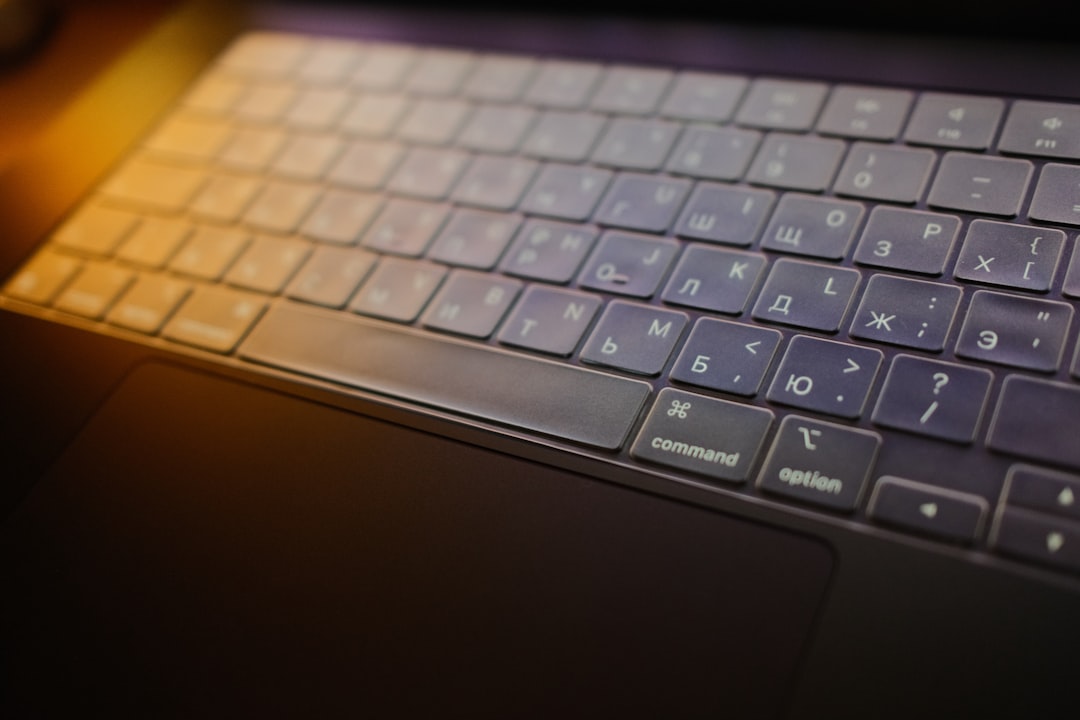

Using a laptop for the first time can feel both exciting and overwhelming. With so many buttons, programs, and settings, beginners often do not know where to start. However, once the basics are understood, a laptop becomes a powerful and user-friendly tool for work, study, entertainment, and communication. This guide explains everything a first-time user needs to know in clear, simple terms.
TLDR: A first-time laptop user should start by learning the basic hardware components, turning the device on safely, and understanding how to use the keyboard and touchpad. Organizing files, connecting to the internet, and installing essential software are key early steps. Basic security measures like passwords and updates help protect the device. With regular practice, confidence and skill grow quickly.
Understanding the Basic Parts of a Laptop
Before turning the laptop on, it helps to become familiar with its main parts. Most laptops share similar designs and features.
- Screen: The display where all content appears.
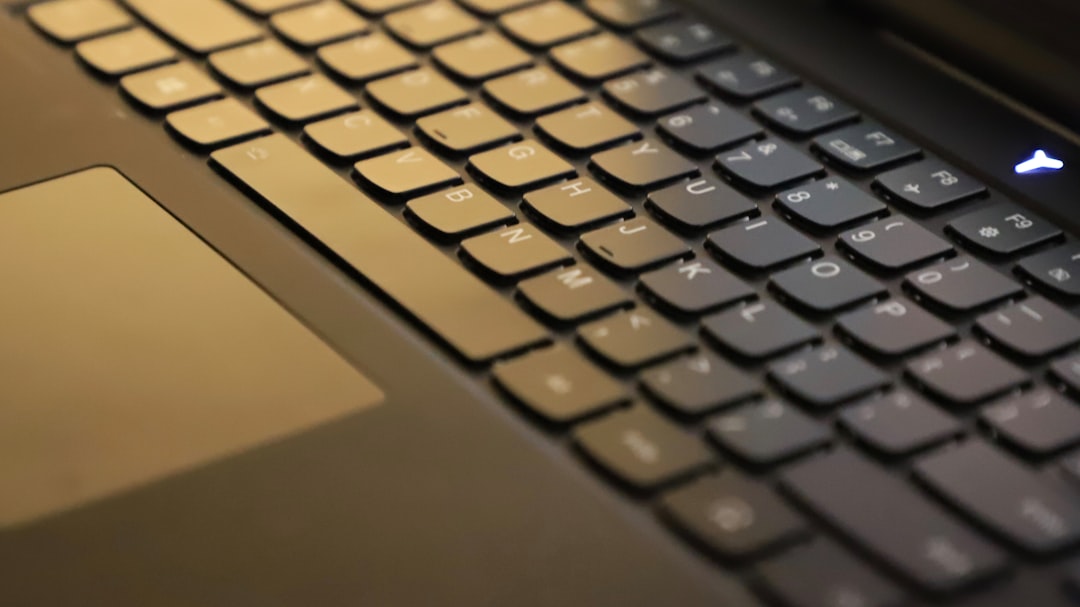
- Keyboard: Used for typing letters, numbers, and commands.
- Touchpad or Trackpad: A touch-sensitive area that controls the pointer on the screen.
- Power Button: Turns the laptop on and off.
- Ports: Openings on the side for USB devices, charging cable, headphones, and other accessories.
- Webcam: A small camera above the screen for video calls.
Understanding these components helps reduce confusion during the first use. Beginners are encouraged to examine their device and physically locate each part.
Turning On the Laptop for the First Time
To begin, the laptop should be placed on a flat, stable surface. It is recommended to connect the charger before turning it on to ensure sufficient battery power.
- Open the lid.
- Locate and press the power button.
- Wait while the system starts up.
The first startup may take longer than usual because the operating system performs initial setup steps. The user will likely be asked to select a language, connect to Wi-Fi, and create a username and password.
Tip: Choose a password that is easy to remember but difficult for others to guess.
Learning to Use the Touchpad and Mouse
The touchpad controls the cursor (arrow) on the screen. Moving a finger across the surface moves the cursor accordingly. Tapping once usually selects an item, while tapping twice quickly opens it.
- Single tap: Select
- Double tap: Open
- Two-finger scroll: Move up and down pages
- Right-click (usually two-finger tap or bottom-right press): Open a menu of options
Some users prefer connecting an external mouse. A USB mouse can simply be plugged into a USB port, and it usually begins working immediately.
Understanding the Desktop and Taskbar
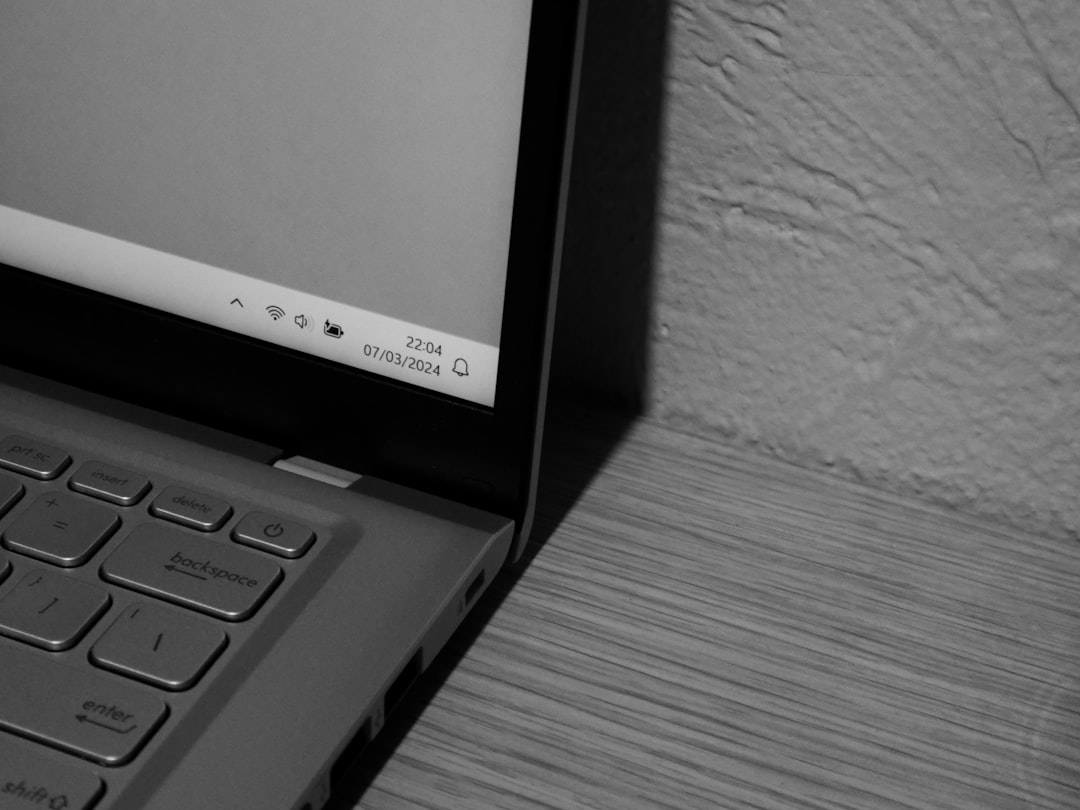
After startup, the main screen displayed is called the desktop. It may contain icons that represent programs, folders, or files. At the bottom (or sometimes side) of the screen is the taskbar, which displays open programs and quick access shortcuts.
The desktop functions like a workspace. Users can:
- Open applications by double-clicking icons
- Right-click to see more options
- Organize files into folders
Exploring the desktop carefully helps build confidence. There is little risk in clicking around, as most changes can be undone.
Connecting to the Internet
Internet access allows browsing websites, sending emails, streaming videos, and downloading software.
- Click the Wi-Fi icon in the taskbar.
- Select a network from the list.
- Enter the Wi-Fi password.
- Click connect.
Once connected, a web browser such as Chrome, Edge, or Safari can be opened. The address bar at the top is where website addresses are typed.
Safety reminder: Users should avoid visiting suspicious websites or downloading files from unknown sources.
Using the Keyboard Effectively
The keyboard contains letters, numbers, symbols, and special function keys. Learning a few important keys makes navigation easier:
- Enter: Confirm a command or move to the next line.
- Backspace: Delete text to the left of the cursor.
- Shift: Create capital letters or special characters.
- Ctrl (Control): Used with other keys for shortcuts.
Common keyboard shortcuts include:
- Ctrl + C: Copy
- Ctrl + V: Paste
- Ctrl + S: Save
- Ctrl + Z: Undo
Practicing these shortcuts saves time and improves efficiency.
Creating and Managing Files
Files store documents, pictures, music, and other content. Organizing files properly prevents frustration later.

To create a new folder:
- Open File Explorer (or Finder on Mac).
- Right-click in an empty space.
- Select New Folder.
- Name the folder clearly.
Using descriptive names such as “School Projects” or “Personal Photos” helps keep files organized. Regular saving is important to prevent data loss.
Installing and Removing Programs
Applications, also called programs or apps, allow the laptop to perform specific tasks like writing documents or editing photos.
Programs can usually be installed by:
- Downloading from an official website
- Using an app store built into the operating system
To remove programs that are no longer needed, users can open system settings and select the uninstall option. Removing unused applications improves performance and frees storage space.
Battery and Power Management
Laptops operate on rechargeable batteries. Monitoring battery level helps avoid sudden shutdowns.
- Keep the battery between 20% and 80% for long-term health.
- Avoid constant full discharge.
- Unplug after fully charging if possible.
Adjusting screen brightness and closing unused programs conserves power.
Basic Security and Maintenance
Security should never be ignored. Even beginners must take precautions to protect their information.
- Set a strong password.
- Enable automatic updates.
- Install antivirus software if necessary.
- Back up important files regularly.
Keeping the system updated ensures protection against new threats and improves overall performance.
Troubleshooting Common Issues
Beginners may encounter small technical problems. Many can be fixed easily.
- Laptop not turning on: Check battery and charger connection.
- Slow performance: Restart the device and close unused programs.
- No internet: Restart the router or reconnect to Wi-Fi.
If problems persist, consulting the device manual or seeking professional help may be necessary.
Building Confidence Through Practice
Like any new skill, using a laptop becomes easier with regular practice. Beginners are encouraged to explore different programs, type documents, browse websites, and customize settings. Mistakes are a natural part of the learning process.
Gradually, tasks that once seemed complicated become automatic. Confidence grows as familiarity increases.
Frequently Asked Questions (FAQ)
- 1. How long does it take to learn basic laptop skills?
Most beginners can learn essential skills within a few days of regular use. Mastery takes longer but improves steadily with practice. - 2. Is it safe to leave a laptop plugged in overnight?
Modern laptops prevent overcharging, but regularly keeping the battery at 100% may reduce long-term battery health. - 3. What should be done if the laptop freezes?
Wait a few moments first. If it remains frozen, try pressing Ctrl + Alt + Delete or holding the power button to restart. - 4. Do beginners need antivirus software?
Many operating systems include built-in protection. Additional antivirus software may be helpful depending on usage habits. - 5. How often should files be backed up?
Important files should be backed up at least once a week or whenever major changes are made. - 6. Can a laptop be used without the internet?
Yes, many applications such as word processors and media players function offline. However, internet access expands functionality significantly. - 7. What is the difference between sleep and shutdown?
Sleep mode saves power while keeping work in memory for quick access. Shutdown completely turns off the device.
With these foundational steps and answers, a beginner can approach their first laptop experience with confidence and clarity. Over time, the device becomes not just a tool, but an essential part of daily life.

Comments are closed.