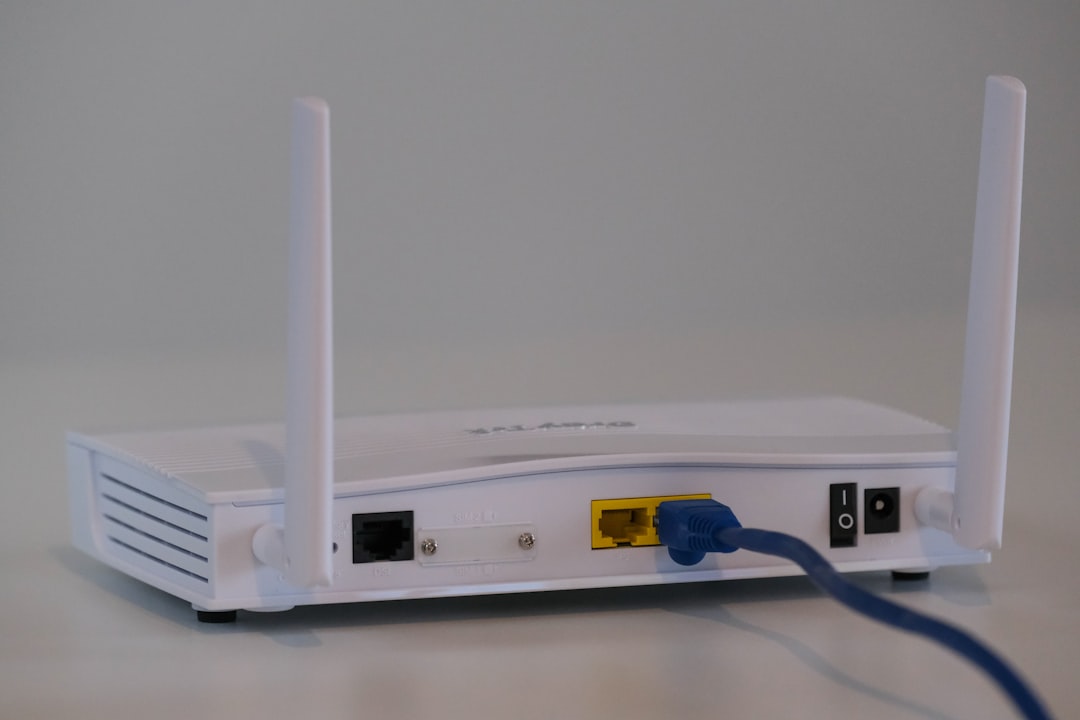

The SuperBox S7 Pro is one of the most popular Android-based streaming TV boxes in 2026, offering access to live channels, on-demand content, and app-based streaming in one compact device. Setting it up correctly ensures smooth playback, better resolution, and fewer buffering issues. This guide explains the complete installation process and highlights essential optimization tips to get the best performance from the device.
TL;DR: Setting up the SuperBox S7 Pro involves connecting it to your TV via HDMI, configuring WiFi or Ethernet, signing into your Google account, and updating the software. For optimal performance, users should enable 4K settings, use wired internet when possible, adjust buffering preferences, and keep apps updated. Following the steps below helps prevent lag, freezing, and connection errors. With proper setup and optimization, the SuperBox S7 Pro delivers a smooth streaming experience.
What Comes in the SuperBox S7 Pro Package
Before installation begins, it is important to confirm that all components are included in the box. A typical SuperBox S7 Pro package contains:
- The SuperBox S7 Pro device
- Voice-enabled remote control
- Power adapter
- HDMI cable
- User manual
Users should inspect the device for any visible damage and ensure the remote batteries are installed properly before proceeding.
Step-by-Step Installation Guide
Step 1: Connect the SuperBox S7 Pro to the TV
First, connect one end of the HDMI cable to the SuperBox S7 Pro and the other end to an available HDMI port on the television. Make sure the cable is inserted securely on both ends.
Next, connect the power adapter to the device and plug it into a wall outlet. Once powered, the device’s indicator light should turn on.
Using the TV remote, switch the input source to the correct HDMI port. After a few seconds, the SuperBox welcome screen should appear.
Step 2: Pair the Remote Control
When prompted on screen, users should pair the voice remote to the device. This usually involves holding down the “OK” and “Volume Down” buttons simultaneously for a few seconds.
Successful pairing allows voice commands for easier navigation and search functionality.
Step 3: Connect to the Internet
An internet connection is required for streaming. Users can choose between WiFi and Ethernet.
- WiFi: Select the home network, enter the password, and confirm.
- Ethernet: Plug a LAN cable directly into the device for faster, more stable connectivity.
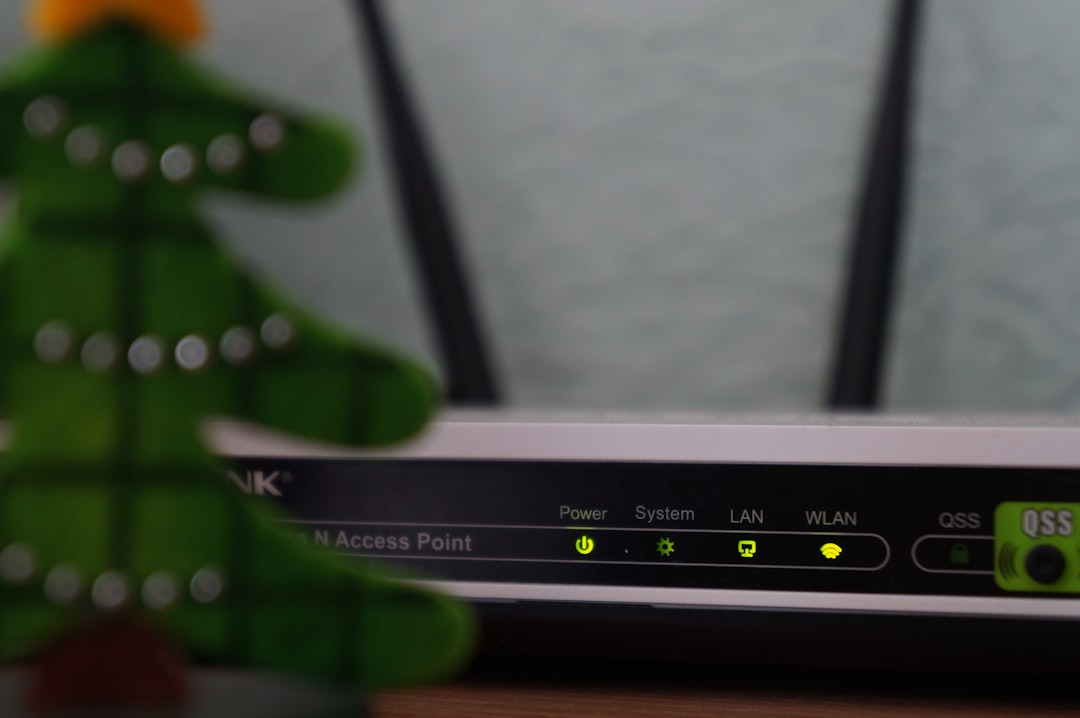
In 2026, most experts recommend a minimum of 25 Mbps for HD streaming and 50+ Mbps for 4K content.
Step 4: Sign In to Google Account
The SuperBox S7 Pro runs on an Android-based system, so signing in with a Google account unlocks the Google Play Store and sync features. Users can log in manually or use the quick sign-in option through a smartphone.
This step enables app downloads, updates, and cloud-based backups.
Step 5: Update the System Software
Before exploring content, users should check for system updates:
- Navigate to Settings
- Select Device Preferences
- Choose About
- Click System Update
Installing the latest firmware ensures improved performance, enhanced security, and bug fixes.
Initial Configuration Settings
Once installation is complete, users should fine-tune the following settings:
- Display Resolution: Set to Auto or manually choose 4K if supported.
- Time Zone: Confirm correct local time for accurate scheduling.
- Audio Output: Configure Dolby Digital if connected to a sound system.
- Language Preferences: Adjust as needed.
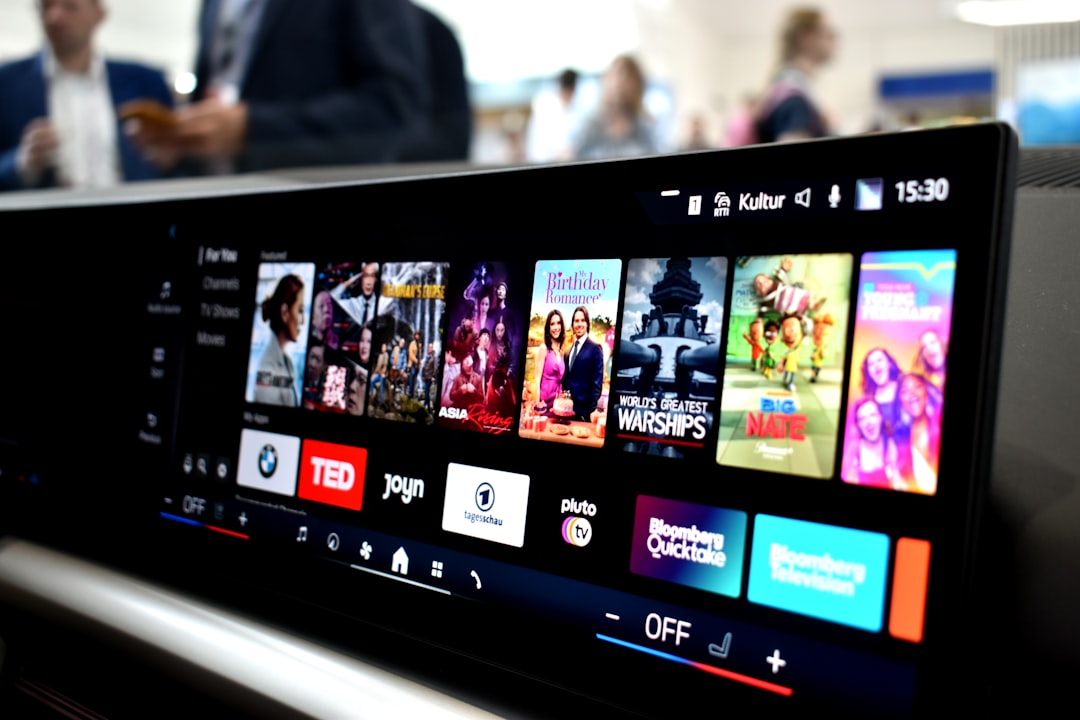
5 Optimization Tips for Best Performance
1. Use Wired Ethernet for Stability
Although WiFi is convenient, Ethernet provides more stable speeds and lower latency. This significantly reduces buffering during live sports or 4K streaming.
2. Enable 4K and HDR (If Supported)
Users with 4K TVs should verify that resolution is set correctly. In some cases, TVs require enabling enhanced HDMI settings to display 4K HDR properly.
Failure to enable this option may limit the display to 1080p even on capable hardware.
3. Clear App Cache Regularly
Over time, streaming apps accumulate temporary files that can slow down performance. To clear cache:
- Go to Settings
- Select Apps
- Choose an app
- Click Clear Cache
This does not delete personal data but helps improve responsiveness.
4. Close Background Apps
Running too many apps in the background consumes memory. Users should exit apps fully after use to preserve system resources and maintain smooth playback.
5. Keep Firmware and Apps Updated
Automatic updates should remain enabled. Updates often include streaming stability improvements and compatibility enhancements for new services.
Troubleshooting Common Installation Issues
No Signal on TV
- Ensure the correct HDMI input is selected.
- Test another HDMI cable.
- Restart the device and TV.
WiFi Not Connecting
- Double-check password accuracy.
- Restart router and device.
- Move the device closer to the router.
Buffering Problems
- Switch to Ethernet connection.
- Restart modem.
- Reduce video resolution temporarily.
Maintenance Tips for Long-Term Performance
Regular maintenance enhances device lifespan and streaming quality. Users should:
- Restart the SuperBox weekly.
- Remove unused apps.
- Keep the device in a well-ventilated space to prevent overheating.
- Avoid installing unreliable third-party apps.
Proper airflow is critical, as overheating can reduce processing performance and cause freezing.
Frequently Asked Questions (FAQ)
1. Does the SuperBox S7 Pro require a monthly subscription?
The device itself does not typically require a monthly fee, but certain third-party apps or streaming platforms may require subscriptions.
2. Can the SuperBox S7 Pro stream in 4K?
Yes, it supports 4K resolution, provided the TV, HDMI cable, and internet speed meet 4K requirements.
3. What internet speed is recommended?
At least 25 Mbps for HD streaming and 50 Mbps or higher for 4K streaming is recommended for optimal performance.
4. How do you fix buffering issues?
Switch to Ethernet, close background apps, clear cache, and ensure sufficient internet speed. Restarting the device often resolves temporary performance glitches.
5. Is the SuperBox S7 Pro compatible with older TVs?
Yes, as long as the TV has an HDMI port. For very old TVs without HDMI, an additional HDMI-to-AV视频 adapter may be required.
6. How often should the device be updated?
Users should check for updates monthly or enable automatic updates to ensure they receive security patches and performance improvements.
With the proper installation steps and the five optimization strategies outlined above, the SuperBox S7 Pro can deliver a smooth, high-quality streaming experience throughout 2026 and beyond.

Comments are closed.