

When people encounter the term DOS on a laptop, they often associate it with older computers, black screens, and command-line inputs. While modern laptops typically run graphical operating systems like Windows, macOS, or Linux, DOS (Disk Operating System) played a foundational role in personal computing and still appears in certain contexts today. Understanding what DOS is, how it works, and why it still matters provides valuable insight into how computer systems function at their core.
TLDR: DOS (Disk Operating System) is a command-line-based operating system that was widely used in the 1980s and 1990s. On a laptop, DOS serves as a minimal operating environment that allows direct interaction with system files and hardware. Although largely replaced by graphical operating systems, DOS remains relevant in specialized use cases, system recovery, and embedded environments. It represents a foundational stage in the evolution of modern computing systems.
What Does DOS Mean?
DOS stands for Disk Operating System. It is an operating system that manages files, hardware devices, and program execution primarily through a command-line interface (CLI). Users interact with DOS by typing text commands rather than using a mouse-driven graphical environment.
The most well-known version is MS-DOS (Microsoft Disk Operating System), developed by Microsoft in the early 1980s. It became the backbone of IBM-compatible personal computers and laid the groundwork for later versions of Microsoft Windows.
On a laptop, DOS functions as the fundamental layer that:
- Controls access to the disk (hard drives or storage media)
- Manages memory allocation
- Runs executable programs
- Handles file system operations
- Facilitates communication between software and hardware
How DOS Works on a Laptop
Unlike modern graphical systems, DOS operates through direct text commands. When a laptop boots into DOS, the user sees a simple prompt, often something like:
C:\>
This prompt indicates that the system is ready to receive commands. The user must manually enter instructions such as:
- DIR – Lists files and directories
- CD – Changes directories
- COPY – Copies files
- DEL – Deletes files
- FORMAT – Prepares a disk for use
DOS is known as a single-tasking operating system. This means it can only run one program at a time. Unlike modern laptops that seamlessly switch between multiple applications, DOS focuses system resources on a single active process.

Core Components of DOS
DOS is relatively compact compared to modern operating systems. Its core components include:
- IO.SYS – Manages communication with hardware devices.
- MSDOS.SYS – Handles the core operating system logic.
- COMMAND.COM – Interprets user commands.
Together, these components form the backbone of the DOS environment on a laptop.
Why Would a Laptop Have DOS Today?
Although DOS is considered legacy software, it still appears in certain situations. You may encounter DOS on a laptop in the following contexts:
1. FreeDOS Preinstalled Laptops
Some laptop manufacturers ship devices with FreeDOS preinstalled. FreeDOS is an open-source DOS-compatible operating system. This approach allows manufacturers to reduce costs by not including a Windows license.
Users are expected to install their own operating system afterward, such as Windows or Linux.
2. Embedded and Industrial Systems
In industrial or specialized environments, laptops running DOS may control:
- Manufacturing equipment
- Diagnostic tools
- Point-of-sale systems
- Legacy machinery interfaces
DOS is valued in these cases for its simplicity, low resource requirements, and stability.
3. System Recovery and Troubleshooting
DOS-like environments are useful for:
- Repairing corrupted systems
- Updating firmware
- Running disk diagnostics
- Flashing BIOS updates
Modern Windows recovery environments retain structural similarities to classic DOS systems.
DOS vs. Modern Operating Systems
To understand DOS fully, it helps to compare it with modern operating systems used on laptops today.
Image not found in postmeta| Feature | DOS | Modern OS (Windows/macOS) |
|---|---|---|
| User Interface | Text-based | Graphical (GUI) |
| Multitasking | Single-tasking | Multitasking |
| Memory Support | Limited (Conventional memory constraints) | Advanced memory management |
| Hardware Support | Basic | Extensive driver ecosystem |
| Security | Minimal | Advanced security features |
This comparison illustrates how far operating systems have evolved since DOS was dominant. However, DOS’s simplicity remains one of its defining strengths.
Advantages of DOS on a Laptop
While outdated for general consumer use, DOS has several important advantages:
- Lightweight: Requires minimal system resources.
- Fast Boot Time: Loads quickly due to small footprint.
- High Stability: Fewer background processes mean fewer potential conflicts.
- Direct Hardware Control: Enables low-level access to system components.
- Ideal for Legacy Software: Supports older applications not compatible with modern systems.
Limitations of DOS
Despite its strengths, DOS lacks many capabilities expected in current laptop environments.
- No Native GUI: Requires text commands.
- Limited Memory Access: Originally limited to 640 KB of conventional memory.
- No Built-in Networking: Networking support is minimal or absent.
- Limited Security: No user account control or encryption systems.
- Single User Design: Not built for multi-user environments.
These limitations led to the development of more advanced operating systems.
The Historical Importance of DOS
DOS was introduced during the early rise of personal computing. It became the standard operating system for IBM PC-compatible machines throughout the 1980s and early 1990s.
Microsoft Windows 95 was one of the first major consumer systems to transition away from depending heavily on DOS. However, even early versions of Windows operated as graphical extensions running on top of DOS.
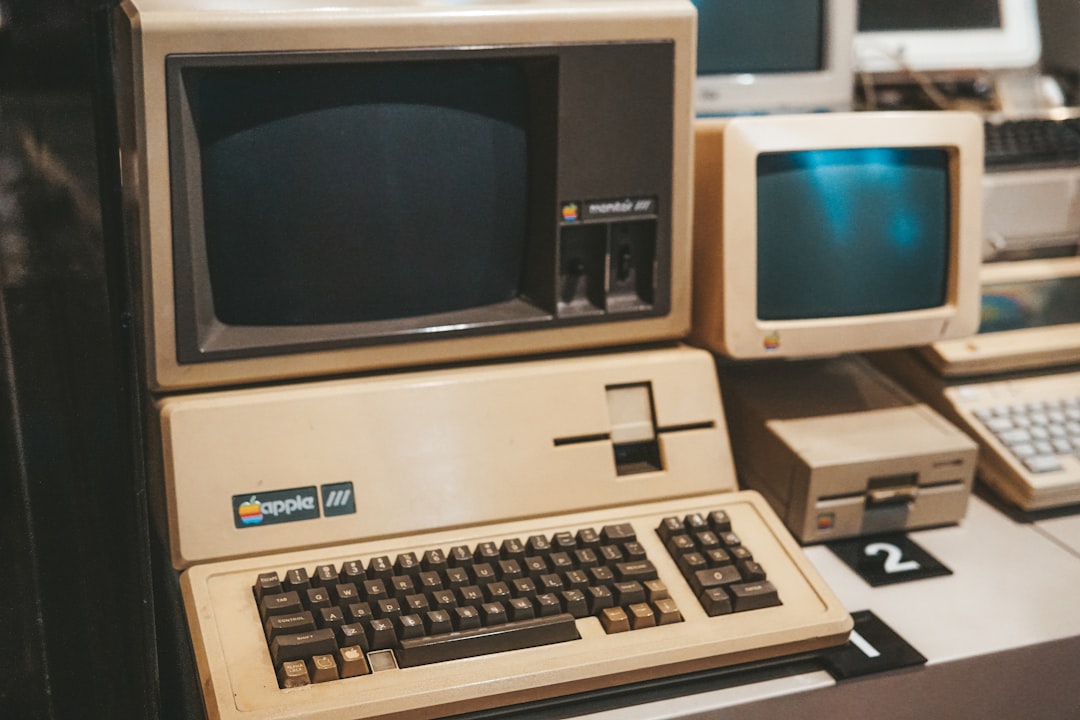
DOS established essential concepts still used today:
- File directory structures
- Executable program formats
- Drive letter assignments (C:, D:, etc.)
- Command-line interaction models
Many of these conventions remain part of modern Windows systems.
Is DOS Still Relevant?
Although rarely used as a primary laptop operating system, DOS remains relevant in several areas:
- Retro computing and preservation
- Embedded systems and firmware tools
- Educational purposes
- BIOS-level utilities
- Minimalist computing environments
Additionally, command-line interfaces in modern systems (such as Windows Command Prompt or PowerShell) inherit conceptual roots from DOS.
What Happens If You Buy a Laptop with DOS?
If you purchase a laptop labeled “DOS” or “FreeDOS,” it typically means:
- The device does not include Windows preinstalled.
- You will need to install an operating system yourself.
- The laptop hardware is fully capable of running modern systems.
This option is often more affordable because it excludes software licensing costs. However, it assumes the buyer has the knowledge or resources to install an operating system.
Conclusion
DOS on a laptop represents both a historical milestone and a specialized tool in modern computing. As a Disk Operating System, it provided one of the earliest structured environments for managing files, memory, and hardware through direct user commands. Though it lacks the graphical sophistication and multitasking power of contemporary operating systems, its efficiency, simplicity, and reliability maintain its relevance in niche applications.
Understanding DOS is not merely an exercise in nostalgia. It reveals the evolution of operating systems and clarifies how today’s laptops function beneath their polished graphical interfaces. In many ways, DOS laid the groundwork upon which modern computing was built. For professionals, students, and technology enthusiasts alike, recognizing its role deepens comprehension of system architecture and operational fundamentals.

Comments are closed.