

Your iPhone is supposed to make life easier, not leave you anxiously watching the battery percentage fall before lunch. If your battery is draining fast, the cause is usually a mix of settings, background activity, weak signal, aging battery health, or a misbehaving app. The good news is that most battery problems can be improved quickly once you know where to look.
TLDR: If your iPhone battery is draining fast, start by checking Battery Usage in Settings to find the apps using the most power. Reduce background activity, lower screen brightness, update iOS, and turn off features you do not need. If your battery health is below 80%, software fixes may help, but a battery replacement is likely the real solution.
Why Your iPhone Battery Drains So Quickly
Battery drain can feel random, but it rarely is. Your iPhone uses power every time the screen lights up, apps refresh in the background, notifications arrive, location services run, or the device searches for a stronger signal. A few minutes of scrolling may not seem like much, but combine a bright display, social media apps, poor reception, and background syncing, and your battery can disappear surprisingly fast.
Another important factor is battery age. Lithium-ion batteries naturally wear down over time. After hundreds of charging cycles, your iPhone may still work normally, but it will hold less charge than it did when new. That means a phone that once lasted all day might now need a charger by mid-afternoon.
Start With Battery Usage in Settings
Before changing random settings, check what is actually using your battery. Go to Settings > Battery. Here, you can view battery usage over the last 24 hours or the last 10 days. This screen shows which apps used the most battery and whether they were active on screen or running in the background.
Look for anything unusual. For example, if a shopping app you barely opened used 18% of your battery in the background, that is a red flag. If your favorite video app is at the top after two hours of streaming, that is normal. The goal is to separate expected usage from apps that are quietly draining power.
- High screen usage: The app drained battery while you were actively using it.
- Background activity: The app used power while you were not looking at it.
- No cell coverage: Your iPhone used extra energy searching for signal.
- Recently deleted apps: An app you removed may have been causing heavy drain.
Lower Screen Brightness and Use Auto-Brightness
The display is one of the biggest battery users on any iPhone. A bright screen looks great outdoors, but keeping brightness high all day can drain your battery quickly. Swipe down from the top-right corner to open Control Center and reduce brightness manually.
You should also make sure Auto-Brightness is enabled. This lets your iPhone adjust the screen based on surrounding light. Go to Settings > Accessibility > Display & Text Size, then scroll down and turn on Auto-Brightness.
For extra savings, reduce Auto-Lock time. Go to Settings > Display & Brightness > Auto-Lock and choose 30 seconds or 1 minute. If your phone sits unlocked on a desk for several minutes at a time, this small change can make a noticeable difference.
Turn On Low Power Mode
Low Power Mode is one of the simplest ways to extend iPhone battery life. It temporarily reduces background activity, mail fetching, automatic downloads, some visual effects, and other power-hungry features. Your iPhone usually offers it when the battery reaches 20%, but you can turn it on anytime.
Go to Settings > Battery and enable Low Power Mode. You can also add it to Control Center by going to Settings > Control Center and adding Low Power Mode. This is especially useful when traveling, commuting, or spending a long day away from a charger.
Stop Apps From Refreshing in the Background
Background App Refresh allows apps to update content when you are not using them. This can be convenient, but it also uses battery. Many apps do not need constant background access. News, shopping, social media, and travel apps are common offenders.
To manage it, go to Settings > General > Background App Refresh. You can turn it off completely or disable it for specific apps. A smart approach is to keep it enabled only for apps that truly benefit from real-time updates, such as messaging, navigation, or productivity tools.
- Open Settings.
- Tap General.
- Select Background App Refresh.
- Turn off apps that do not need to update silently.
Tip: If you are unsure, disable background refresh for an app and see whether you notice any inconvenience. In many cases, you will not miss it at all.
Check Location Services
Location tracking is another major battery drain, especially when apps request your location frequently. Maps and weather apps need location access, but not every app needs to know where you are all the time.
Go to Settings > Privacy & Security > Location Services. Review each app and choose the most restrictive option that still makes sense. For many apps, While Using the App is enough. Avoid Always unless the app genuinely requires it, such as certain fitness, safety, or navigation apps.
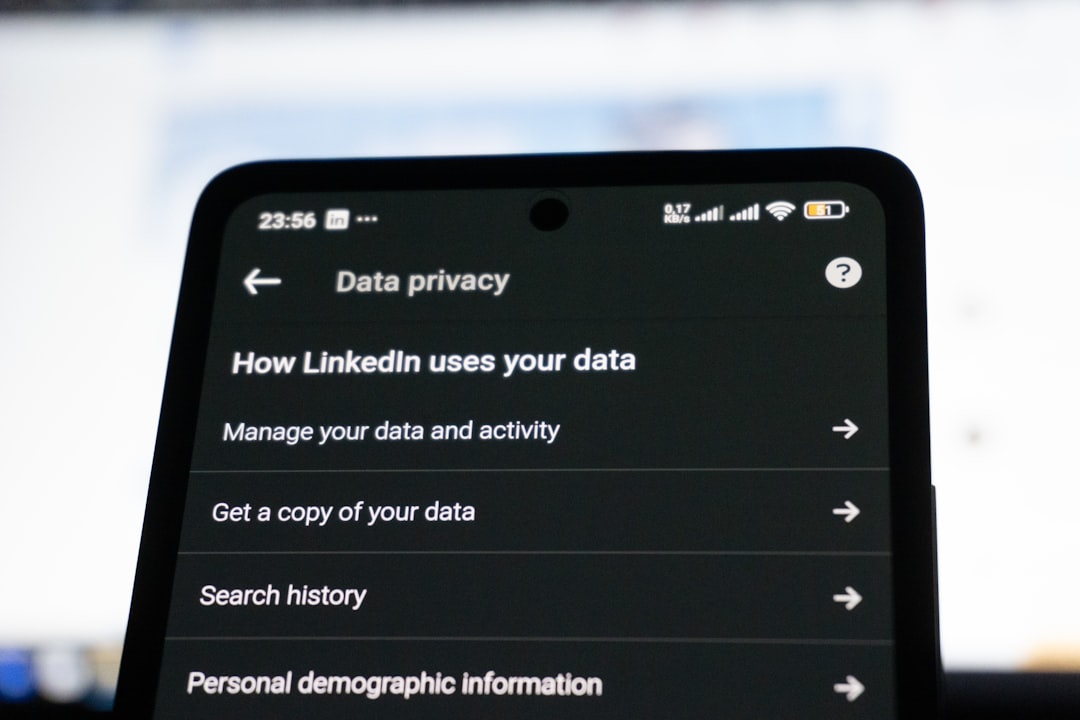
You can also turn off Precise Location for apps that only need your approximate area. For example, a weather app can often work fine without knowing your exact street. Small privacy improvements can also become battery improvements.
Update iOS and Your Apps
Software bugs can cause battery drain. Sometimes an iOS update introduces temporary battery issues as the phone reindexes files, syncs data, and optimizes background processes. This can last a day or two. However, updates also fix known battery problems, security flaws, and app compatibility issues.
To update your iPhone, go to Settings > General > Software Update. To update apps, open the App Store, tap your profile icon, and install available updates. If one app has been draining battery unusually fast, updating it may solve the problem.
If your battery drain started immediately after a major iOS update, give your iPhone 24 to 48 hours to settle. If the problem continues, check Battery Usage again to identify what is running heavily.
Manage Push Email and Notifications
Email can quietly consume battery, especially if multiple accounts are set to fetch messages frequently. Push email delivers messages instantly, which is convenient but uses more power. If you do not need instant email alerts, change your settings.
Go to Settings > Mail > Accounts > Fetch New Data. Consider turning off Push and setting Fetch to every 15, 30, or 60 minutes. For maximum savings, choose Manually, which checks email only when you open the Mail app.
Notifications also wake your screen and trigger background activity. Go to Settings > Notifications and disable alerts for apps that are not important. Fewer notifications mean fewer distractions and better battery life.
Use Wi-Fi When Possible
Cellular data often uses more power than Wi-Fi, particularly in areas with weak reception. When your iPhone struggles to maintain signal, it increases power usage to stay connected. If you are indoors, in a basement, on a train, or far from a cell tower, battery drain can accelerate.
Use Wi-Fi whenever it is available and reliable. If you are in an area with very poor reception and do not need calls or data, consider turning on Airplane Mode. You can then re-enable Wi-Fi manually if needed.
Also check Settings > Cellular to see which apps are using mobile data. Disable cellular access for apps that do not need it, especially video, cloud storage, and social media apps.
Review Battery Health
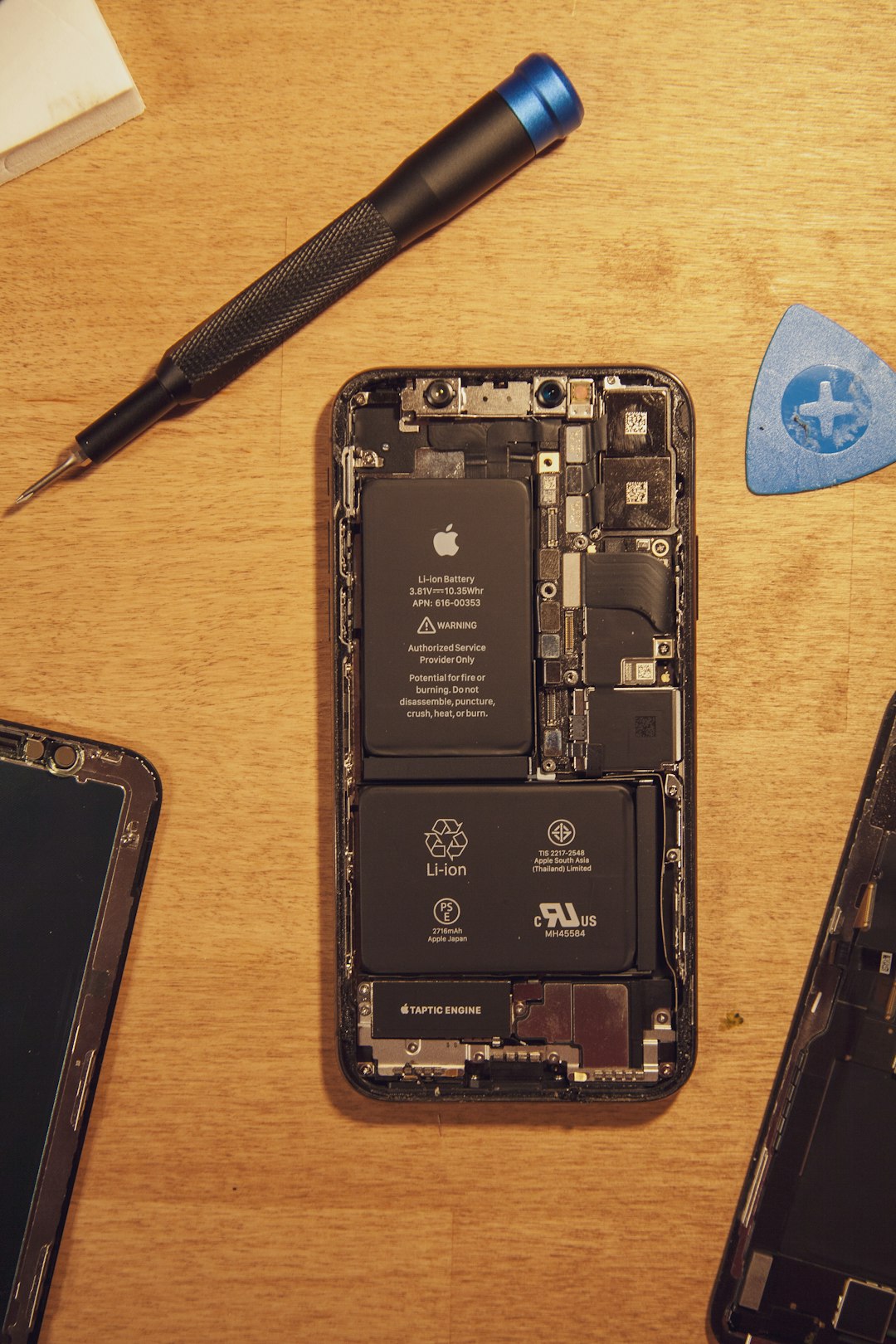
If your iPhone is more than two years old, battery health becomes especially important. Go to Settings > Battery > Battery Health & Charging. Look at Maximum Capacity. This percentage estimates how much charge your battery can hold compared to when it was new.
If maximum capacity is above 90%, your battery is still in strong condition. Between 80% and 90%, you may notice shorter battery life, but settings changes can still help. Below 80%, Apple generally considers the battery significantly degraded, and replacement may be the best fix.
You may also see a message about Peak Performance Capability. If your battery cannot provide enough power during demanding tasks, your iPhone may slow itself down to prevent unexpected shutdowns. A new battery can often restore both battery life and performance.
Avoid Extreme Temperatures
Temperature affects battery performance more than many people realize. iPhones work best in moderate conditions. High heat can permanently reduce battery capacity, while cold temperatures can temporarily make the battery drain faster or cause sudden shutdowns.
Avoid leaving your iPhone in direct sunlight, inside a hot car, or under a pillow while charging. If your phone becomes very warm, remove the case and let it cool before continuing heavy use. Heat from gaming, video recording, fast charging, or navigation can add up quickly.
Charge Smarter, Not Harder
You do not need to fully drain your iPhone before charging it. Modern lithium-ion batteries prefer smaller, regular charges. Keeping your phone between about 20% and 80% when practical can reduce long-term wear, although you do not need to obsess over it.
Make sure Optimized Battery Charging is turned on under Settings > Battery > Battery Health & Charging. This feature learns your routine and delays charging past 80% until closer to the time you usually unplug your phone. It is designed to reduce battery aging over time.
Quick Battery Fix Checklist
- Check Settings > Battery for unusual app drain.
- Lower screen brightness and enable Auto-Brightness.
- Turn on Low Power Mode when needed.
- Disable unnecessary Background App Refresh.
- Limit apps with Always location access.
- Update iOS and all apps.
- Reduce push email, fetch frequency, and notifications.
- Use Wi-Fi instead of weak cellular connections.
- Check Battery Health and replace the battery if needed.
When to Reset or Get Help
If you have tried everything and the battery still drains unusually fast, restart your iPhone first. A simple reboot can stop stuck processes. If the issue continues, consider resetting settings by going to Settings > General > Transfer or Reset iPhone > Reset > Reset All Settings. This does not erase your data, but it does reset Wi-Fi, privacy, display, and system preferences.
If your iPhone gets hot with minimal use, shuts down unexpectedly, or loses battery rapidly even in standby, contact Apple Support or a trusted repair provider. There may be a hardware issue, a failing battery, or another component drawing excess power.
Final Thoughts
A fast-draining iPhone battery is frustrating, but it is usually fixable. Start with the biggest power users: the screen, background apps, location services, weak signal, and battery health. With a few smart adjustments, your iPhone can last longer throughout the day and feel more reliable again.
And if your battery is simply worn out, do not waste endless time chasing settings. A replacement battery can be the most practical upgrade, giving your iPhone a longer life without buying a new device.

Comments are closed, but trackbacks and pingbacks are open.