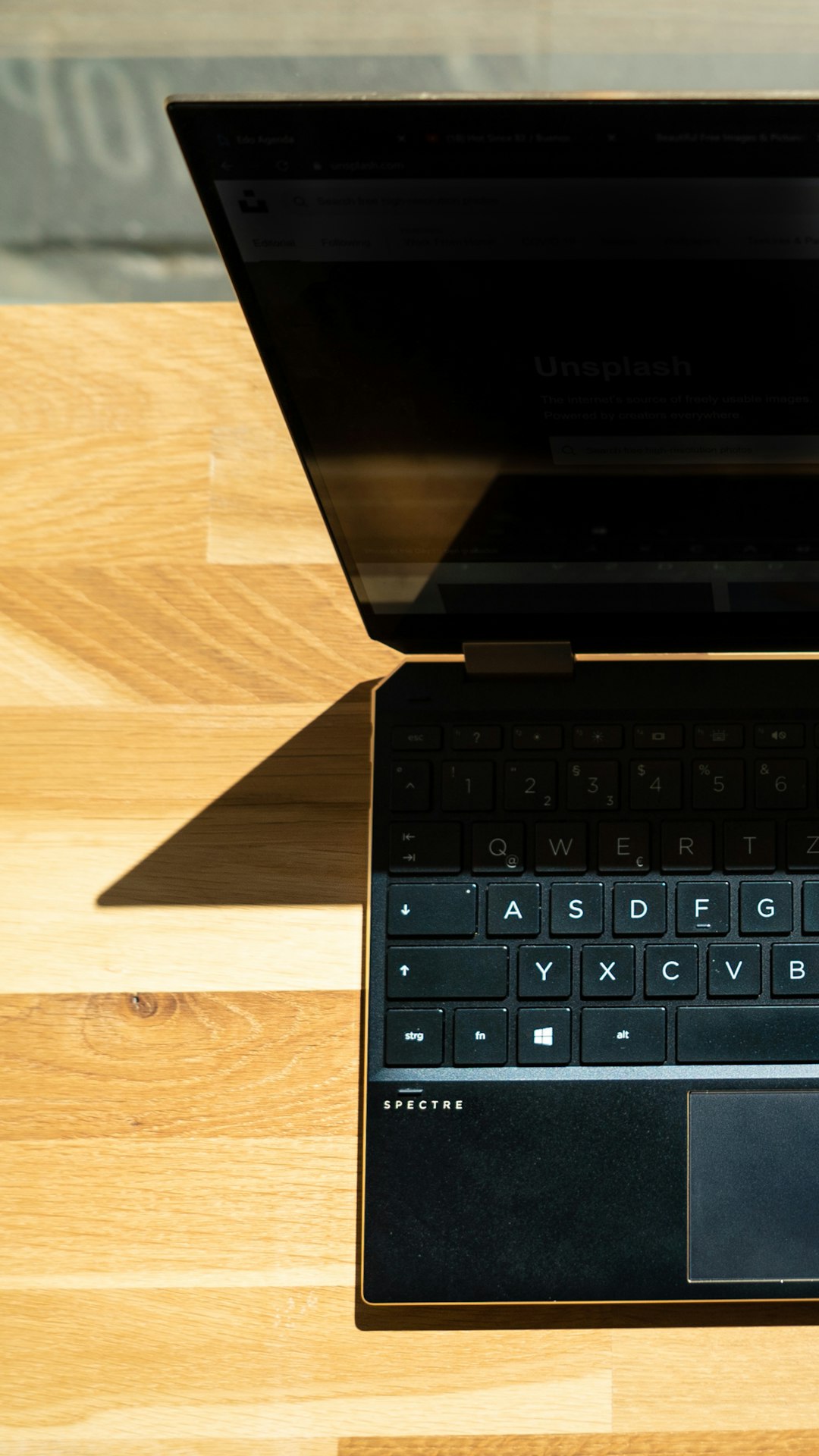

Turning on an HP Pavilion laptop may seem straightforward, but if you are using the device for the first time, setting it up after purchase, or trying to power it on after a technical issue, following the correct steps ensures a smooth and safe startup. HP Pavilion laptops are designed for user-friendly operation, yet understanding the full process—from checking the power supply to troubleshooting startup problems—can save you time and prevent unnecessary frustration. This guide provides a clear, structured walkthrough to help you power on your HP Pavilion properly and confidently.
TLDR: To turn on an HP Pavilion laptop, connect the charger if needed, open the lid, and press the power button once firmly. Wait for the HP logo and follow on-screen instructions if it is your first setup. If the laptop does not start, check the power source, battery, or perform basic troubleshooting steps. Most startup issues can be resolved with simple checks and resets.
Understanding Your HP Pavilion Laptop
Before attempting to power on your laptop, it is helpful to identify a few essential components. Most HP Pavilion models follow a similar layout, though exact designs may vary slightly.
Image not found in postmeta- Power Button: Typically located above the keyboard, near the top right or left corner. On some models, it appears as a small circular or rectangular button with a power symbol.
- Charging Port: Found on either side of the laptop, where you connect the AC adapter.
- Charging Indicator Light: A small LED light that shows whether the laptop is receiving power.
- Display Lid: Ensure it is fully open before pressing the power button.
Becoming familiar with these elements makes the startup process much easier.
Step 1: Check the Power Source
Before pressing the power button, verify that your laptop has sufficient battery power.
If the Laptop Is New
New laptops often arrive with a partially charged battery. However, it is recommended to plug in the charger before first use.
- Connect the AC adapter to the laptop’s charging port.
- Plug the other end into a working electrical outlet.
- Look for the charging indicator light to confirm power connection.
If the Laptop Was Previously Used
If the battery may be drained:
- Plug in the charger.
- Wait at least 5–10 minutes if the battery was completely empty.
- Ensure the wall outlet is functioning properly.
Skipping this step may result in the laptop appearing unresponsive.
Step 2: Open the Laptop Properly
Place the laptop on a flat, stable surface such as a desk or table. Gently lift the lid from the front edge. Avoid forcing it open from one side, as this can strain the hinges over time.
Ensure the screen is positioned at a comfortable viewing angle before proceeding.
Step 3: Locate and Press the Power Button
Once the device is connected to power (if needed) and fully opened, locate the power button.
To turn it on:
- Press the power button firmly once.
- Do not hold it down unless the laptop fails to respond.
- Wait for the screen to light up.
You should see:
- The keyboard backlight turn on (if your model includes this feature).
- The HP logo displayed on the screen.
- A spinning loading indicator beneath the logo.
If this happens, the laptop has successfully begun its startup process.
Step 4: Allow the System to Boot
After pressing the power button, the system needs time to load the operating system (typically Windows).
During this stage:
- Avoid pressing additional keys unnecessarily.
- Do not close the lid.
- Do not disconnect the power cable.
The boot process usually takes between 10 and 60 seconds, depending on the model and system configuration.
Step 5: Complete Initial Setup (If New)
If this is your first time turning on the HP Pavilion laptop, you will be guided through Windows setup.
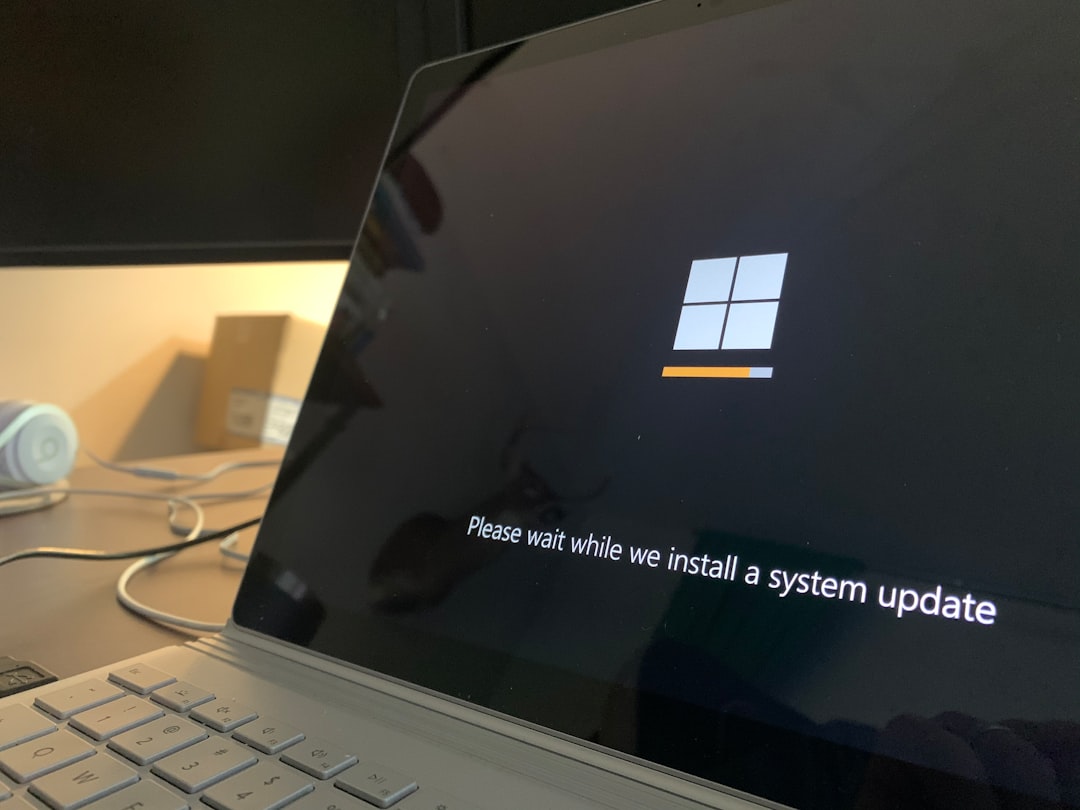
You will typically need to:
- Select your region and language.
- Connect to a Wi-Fi network.
- Sign in with or create a Microsoft account.
- Create a PIN or password.
- Adjust privacy settings.
Important: Ensure your laptop remains connected to power during this process to prevent interruptions.
How to Know the Laptop Is Fully On
Your HP Pavilion is fully turned on when:
- The Windows desktop appears.
- You can move the cursor with the touchpad or mouse.
- You can open applications from the Start menu.
At this point, the startup process is complete.
If Your HP Pavilion Does Not Turn On
If pressing the power button produces no response, follow these troubleshooting steps.
1. Perform a Basic Power Reset
- Disconnect the charger.
- If possible, remove the battery (for models with removable batteries).
- Press and hold the power button for 15 seconds.
- Reconnect the charger (leave the battery out temporarily if removable).
- Press the power button again.
This process helps discharge residual electrical buildup that may prevent startup.
2. Check the Charger and Cable
- Inspect the cord for visible damage.
- Confirm the outlet is functional by testing another device.
- Verify that the charging light turns on when plugged in.
3. Look for Indicator Lights or Sounds
Even if the screen remains black, listen carefully:
- Is the fan spinning?
- Are there blinking LED lights?
- Do you hear beeping sounds?
These signs indicate that the laptop is receiving power but may be experiencing a display or hardware issue.
4. Try an External Display
If the laptop powers on but the screen stays black, connect it to an external monitor using HDMI. This helps determine whether the built-in display is malfunctioning.
Common Mistakes to Avoid
Even simple tasks can go wrong if basic precautions are ignored. Avoid the following:
- Holding the power button too long: This may force the device into a hard shutdown.
- Repeated rapid pressing: Pressing the button multiple times can interrupt boot.
- Using incompatible chargers: Always use the original HP charger or an approved replacement.
- Ignoring battery health: An aging battery may require replacement.
Best Practices for Safe Startup
Maintaining proper startup habits extends the lifespan of your HP Pavilion.
- Keep the laptop on a hard surface to ensure proper ventilation.
- Update Windows regularly to maintain system stability.
- Avoid installing unknown startup applications that may slow boot time.
- Shut down properly instead of forcing power-offs.
A well-maintained device powers on reliably and performs efficiently.
When to Contact HP Support
You should consider contacting official HP Support if:
- The laptop shows no signs of power despite troubleshooting.
- You hear persistent beeping codes.
- The device shuts off immediately after turning on.
- The laptop is under warranty and exhibits hardware problems.
Provide your laptop’s model number and serial number for faster assistance.
Final Thoughts
Turning on an HP Pavilion laptop is typically as simple as opening the lid and pressing the power button. However, ensuring proper power connection, allowing adequate boot time, and understanding basic troubleshooting steps make the process reliable and stress-free. Whether you are setting up a new device or restarting one after storage, following a structured approach minimizes complications.
By applying the steps outlined in this guide, you can power on your HP Pavilion laptop confidently, address minor startup issues independently, and maintain the device in optimal working condition. A careful, informed approach not only improves user experience but also helps protect your investment over time.

Comments are closed, but trackbacks and pingbacks are open.