

Do you want to track stock prices like a pro — without leaving your spreadsheet? With a little help from Google Sheets and the GOOGLEFINANCE function, you can do just that. It’s quick, easy, and even fun!
Whether you’re a beginner or a portfolio-tracking wizard, this guide will help you use GOOGLEFINANCE to monitor the market efficiently.
What is GOOGLEFINANCE?
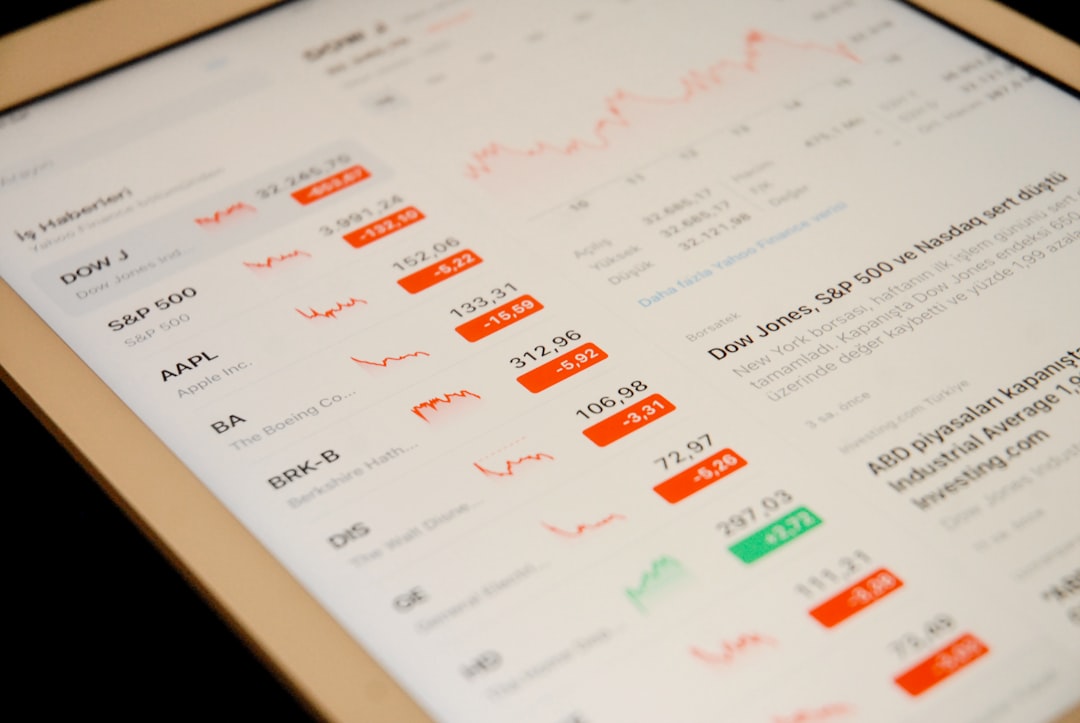
GOOGLEFINANCE is a built-in function in Google Sheets. It pulls real-time (and historical) data from the web right into your spreadsheet. This means you can track changing stock prices live — all within your browser!
Why Use GOOGLEFINANCE?
- Real-time prices – Always know what your favorite stocks are doing.
- Historical data – See trends over time.
- Custom dashboards – Get creative and build your own stock tracker.
- No coding required – Enter some formulas and you’re set!
Perfect for personal use, class projects, or even small investment teams.
How to Use It: The Basics
The syntax is really simple:
=GOOGLEFINANCE("ticker", "attribute")
Let’s break it down:
- “ticker” is the stock’s symbol. For example, “GOOG” for Google.
- “attribute” tells the function what info you want. Examples: “price”, “name”, or “volume”.
Here are some quick examples:
=GOOGLEFINANCE("AAPL", "price")will give you Apple’s current price.=GOOGLEFINANCE("MSFT", "name")outputs Microsoft Corporation.=GOOGLEFINANCE("TSLA", "volume")returns Tesla’s trade volume.
Creating Your Own Stock Tracker
Let’s build a mini live stock dashboard. Here’s a simple setup:
| Ticker | Company Name | Price | Change % |
|---|---|---|---|
| AAPL | =GOOGLEFINANCE(“AAPL”, “name”) | =GOOGLEFINANCE(“AAPL”, “price”) | =GOOGLEFINANCE(“AAPL”, “changepct”) |
| GOOG | =GOOGLEFINANCE(“GOOG”, “name”) | =GOOGLEFINANCE(“GOOG”, “price”) | =GOOGLEFINANCE(“GOOG”, “changepct”) |
As you add more rows and tickers, the table updates with real-time data!
Pulling Historical Data
Want to see how a stock performed over time? You can! Just use this format:
=GOOGLEFINANCE("ticker", "attribute", "start_date", "end_date", "interval")
Let’s check Apple’s price history over the last 30 days:
=GOOGLEFINANCE("AAPL", "close", TODAY()-30, TODAY(), "DAILY")
- “close” is the closing price.
- TODAY() grabs today’s date.
- “DAILY” gives you each day’s data.
This creates a chart-ready table of past prices. Now visualize those trends with a line graph!
Automating a Stock Watchlist
Set up a list of your favorite stocks in one column, and use GOOGLEFINANCE formulas alongside them.
Example setup:
| Stock | Price |
|---|---|
| AMZN | =GOOGLEFINANCE(A2, “price”) |
| NFLX | =GOOGLEFINANCE(A3, “price”) |
If you drag that formula down, Google Sheets will apply it to the list below. Easy!
Bonus Tricks
Want to spice it up? Here are some cool extras:
- Conditional formatting – Make prices green when they go up and red when they fall.
- Sparkline graphs – Create little mini charts in single cells!
- Alerts with Apps Script – Set up email alerts if a stock hits a target price.
Limitations to Keep in Mind
As great as it is, the GOOGLEFINANCE function does have some limits:
- It may have a slight delay on real-time pricing.
- It only works in Google Sheets (not Excel).
- Some international stocks might not be supported.
- You can’t pull cryptocurrency data natively (e.g., BTC, ETH).
Still, for basic U.S. and popular international stock tracking, it works like a charm.
Tips for Making It Awesome
Want your spreadsheet to shine? Try these:
- Use freeze panes to keep headers visible as you scroll.
- Use custom number formatting to turn long decimals into clean dollar amounts.
- Bundle your sheet with charts and filter views for better interactivity.

Time to Build Your Tracker!
Now you know how powerful GOOGLEFINANCE really is. With just a few functions, Google Sheets becomes a window into Wall Street.
No more hitting refresh on your favorite finance app. No more manually copying data into a doc. It’s all right there — live, flexible, and totally customizable.
So, fire up Google Sheets and start building. Happy tracking!

Comments are closed.