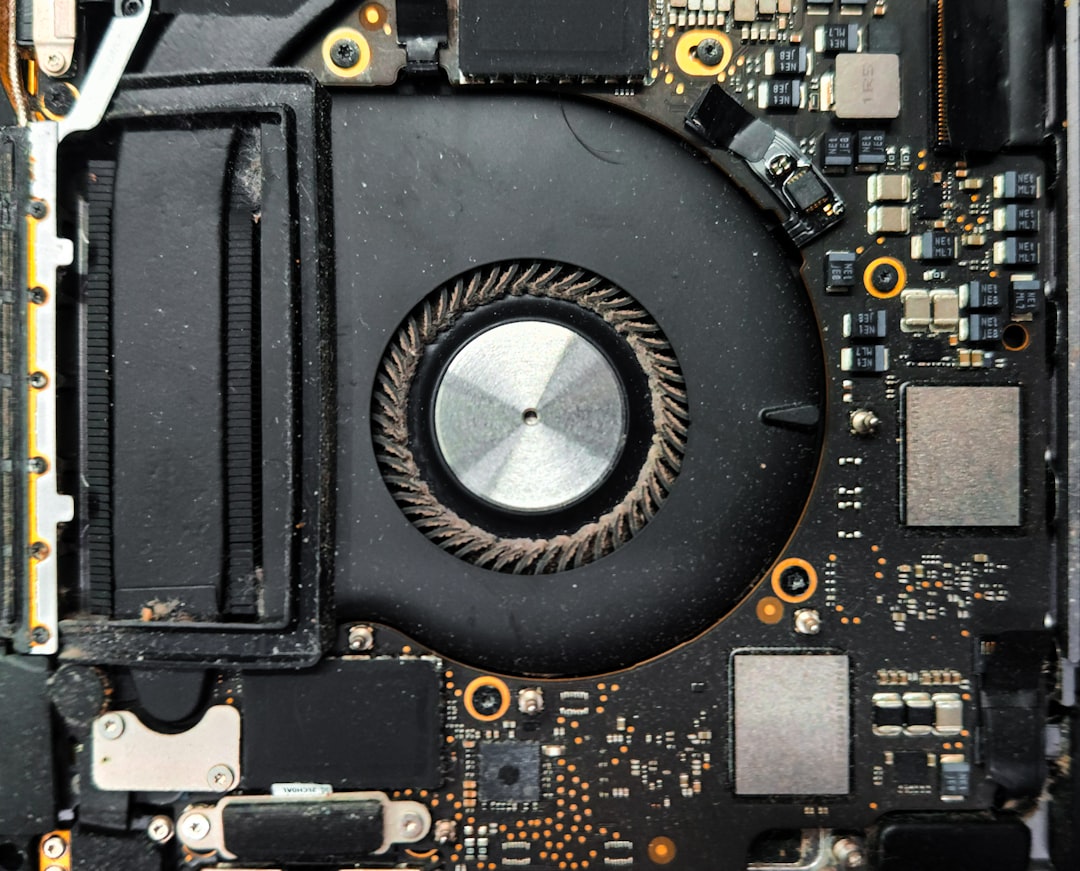

Laptops are designed to handle heat, but they are not immune to damage caused by excessive temperatures. Over time, high heat can silently degrade internal components, reduce performance, and even lead to permanent failure. Knowing how to check if your laptop has heat damage can save you from costly repairs and unexpected breakdowns.
TLDR: Heat damage in laptops often shows up as sudden shutdowns, loud fan noise, screen glitches, reduced performance, or battery issues. You can check for damage by monitoring temperatures, inspecting hardware, and running diagnostic tests. Physical signs like warped casing or a burning smell can also point to overheating problems. Acting early can prevent permanent component failure and extend your laptop’s lifespan.
Why Heat Is a Serious Issue for Laptops
Unlike desktop PCs, laptops are compact and tightly packed with components. This design makes them efficient and portable, but it also limits airflow. When heat has nowhere to go, it builds up quickly. Prolonged high temperatures can damage critical internal parts such as:
- CPU (Central Processing Unit)
- GPU (Graphics Processing Unit)
- Battery
- Motherboard
- Storage drives
Even if your laptop continues to work, sustained overheating can reduce its overall lifespan. Recognizing early warning signs is key to preventing permanent harm.
Common Signs of Heat Damage
Before opening your laptop or running complex checks, look for visible and behavioral symptoms. These are often the easiest clues.
1. Frequent Overheating and Shutdowns
If your laptop suddenly shuts down without warning, especially during demanding tasks like gaming or video editing, it may be protecting itself from overheating. Modern systems automatically power off when internal temperatures exceed safe limits.
Repeated emergency shutdowns are a strong indicator that heat is stressing your system.
2. Reduced Performance (Thermal Throttling)
When a processor becomes too hot, it slows itself down to reduce temperature. This process is called thermal throttling. You may notice:
- Lag during simple tasks
- Slow application launches
- Stuttering video playback
- Unexpected drops in game frame rates
If your once-fast laptop now feels sluggish, persistent overheating may be degrading its internal components.
3. Loud or Constant Fan Noise
Laptop fans automatically adjust speed based on temperature. If the fan is always running at high speed—even during light tasks—it may indicate excess internal heat.
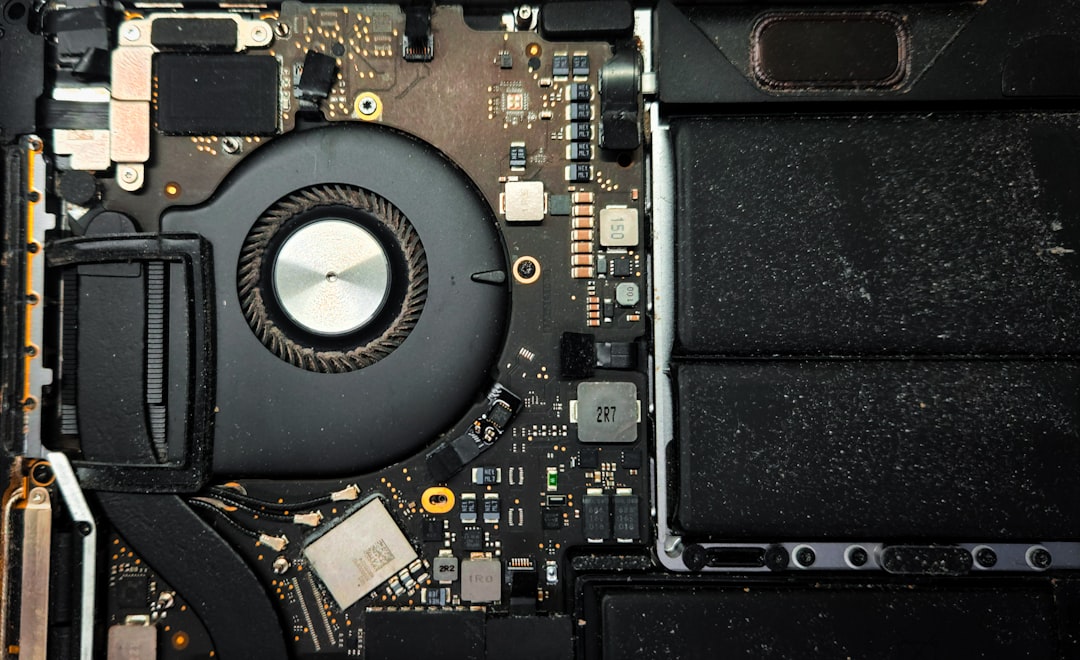
In some cases, heat damage can cause the fan itself to malfunction, either spinning irregularly or failing completely. Both situations require attention.
4. Screen Glitches or Graphic Artifacts
The GPU is particularly sensitive to high temperatures. Signs of heat-related GPU damage include:
- Flickering screen
- Strange lines or colored blocks (artifacts)
- Distorted visual output
- Crashes during graphic-intensive tasks
These visual abnormalities can be early signs of permanent heat-related damage.
5. Battery Swelling or Rapid Drain
Excessive heat accelerates battery wear. If your laptop battery drains unusually fast or no longer holds a charge, overheating might be to blame.
In severe cases, lithium-ion batteries may swell due to thermal stress. You might notice:
- A bulging keyboard or trackpad
- Uneven laptop base
- Difficulty closing the lid properly
A swollen battery is a serious safety risk and should be replaced immediately.
How to Check Internal Temperature
To confirm whether heat is the issue, you need actual temperature data. Fortunately, this is simple.
Use Temperature Monitoring Software
Install reliable hardware monitoring software to check CPU and GPU temperatures. Under normal conditions:
- Idle temperature: 30°C–50°C (86°F–122°F)
- Under load: 60°C–85°C (140°F–185°F)
If temperatures consistently exceed 90°C (194°F), your laptop may be suffering from severe thermal stress.
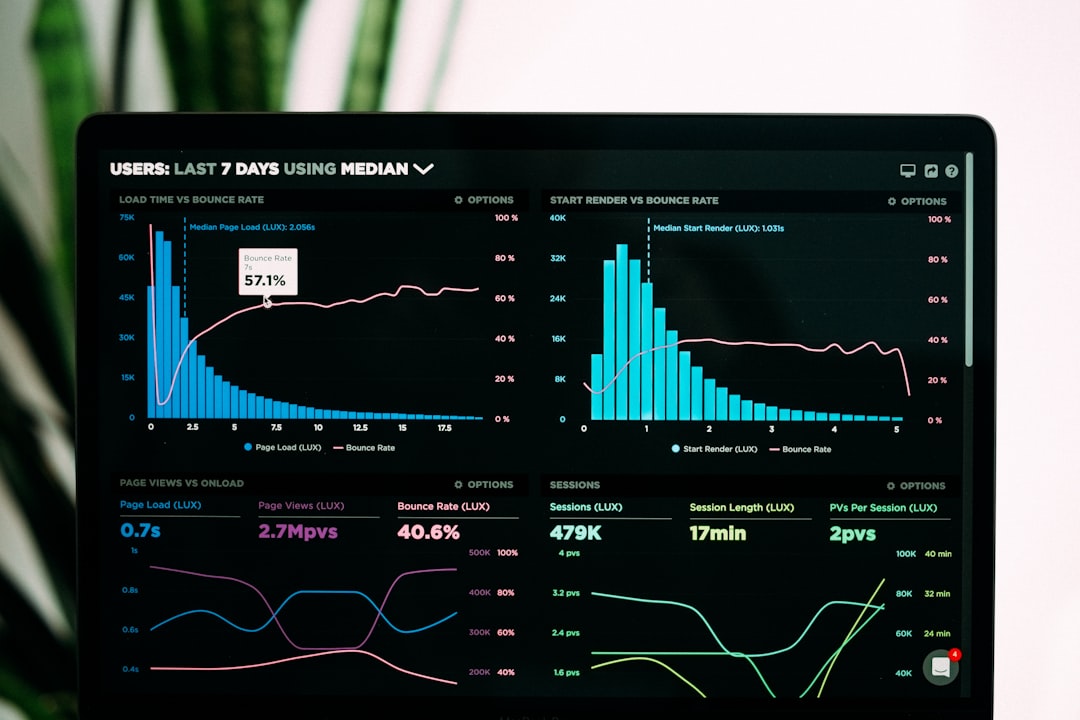
Repeated exposure to extreme temperatures can permanently weaken silicon chips and solder joints on the motherboard.
Run a Stress Test
Stress testing pushes your CPU or GPU to maximum performance. While running a controlled test:
- Monitor temperature spikes
- Watch for sudden shutdowns
- Look for performance drops
- Check for system crashes
If your laptop cannot complete a stress test without overheating or shutting down, heat damage may already be affecting its reliability.
Physical Inspection for Heat Damage
While software checks are important, physical inspection also reveals clues.
Check Air Vents and Exhaust Areas
Dust accumulation restricts airflow, trapping heat inside.
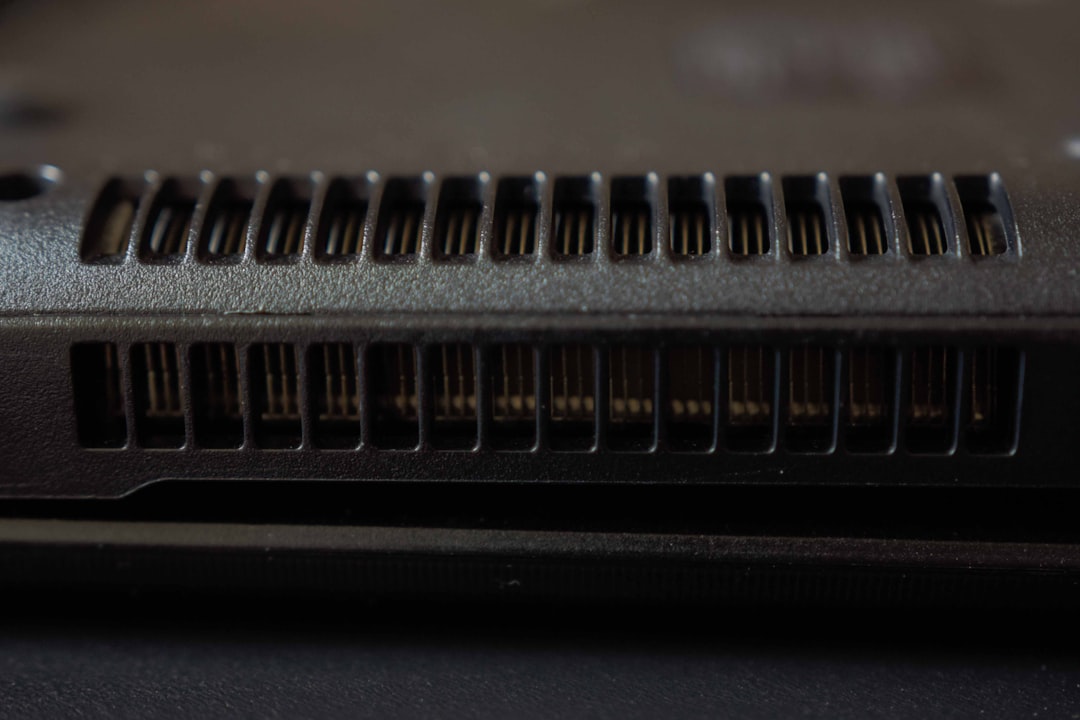
Inspect for:
- Visible dust buildup
- Blocked ventilation ports
- Excessively hot exhaust air
Dust alone does not necessarily mean permanent damage, but if left untreated for long periods, it can contribute to component failure.
Look for Warping or Discoloration
Extreme internal heat can cause subtle physical changes:
- Warped bottom panel
- Discolored plastic near vents
- A faint burning smell
These warning signs should never be ignored.
Check System Logs for Thermal Events
Many operating systems record overheating incidents in system logs. Look for:
- “Thermal event” warnings
- Unexpected shutdown reports
- Kernel power errors
Repeated thermal event records strongly suggest persistent overheating issues that may have caused damage over time.
Internal Component Inspection (Advanced Users)
If you are comfortable opening your laptop, you can visually inspect internal components. Proceed carefully and only if the device is powered off and unplugged.
Look for:
- Dried or cracked thermal paste
- Discolored motherboard areas
- Loose heat sink connections
- Damaged fan wiring
Thermal paste that has dried out loses its ability to transfer heat efficiently, leading to rising temperatures and possible chip degradation.
When Heat Damage Becomes Permanent
Unfortunately, some signs point to irreversible hardware damage:
- Laptop no longer powers on
- Persistent graphical artifacts even after cooling
- Motherboard failure
- Repeated boot loops
At this stage, professional repair or component replacement is usually required.
How to Prevent Further Damage
If you suspect heat damage, act quickly to prevent worsening problems.
- Clean internal fans and vents
- Replace thermal paste
- Use a cooling pad
- Avoid blocking airflow on soft surfaces
- Limit heavy tasks in hot environments
Even small adjustments can significantly lower operating temperatures and stabilize performance.
Is Repair Worth It?
The value of repair depends on the laptop’s age and the extent of the damage. If only the cooling system needs maintenance, the fix is relatively inexpensive. However, if the motherboard or GPU is damaged, repair costs may approach or exceed the price of a new device.
For newer laptops, replacing thermal paste, cleaning fans, or installing a new cooling system is usually worth the investment. For older devices, upgrading may be more practical.
Final Thoughts
Heat damage is one of the most common and underestimated threats to laptops. While modern systems include safeguards like thermal throttling and automatic shutdown, these protections are not foolproof. Subtle symptoms—like fan noise, sluggish performance, or screen glitches—can indicate deeper thermal issues.
By monitoring internal temperatures, inspecting hardware, and responding quickly to warning signs, you can detect heat damage early or prevent it altogether. A laptop that runs cool is not just comfortable to use—it’s more reliable, longer-lasting, and far less likely to fail when you need it most.
Stay attentive to your laptop’s behavior. Heat may be invisible, but its effects are not.

Comments are closed, but trackbacks and pingbacks are open.